
Category: AI Images
How AI Upscaling Improves Image Quality Instantly



Low-quality images can be a big problem, especially when you’re working on a website, presentation, or online store. Traditional methods of making pictures bigger usually make them blurry and less detailed, so they end up looking worse.
AI upscaling is the best solution. Using advanced algorithms and machine learning, an AI upscaler can transform low-quality images into high-resolution versions in seconds. This technology looks at patterns in your image and smartly adds missing details. This makes results that would be almost impossible to get by hand.
In this guide, we’ll explore what AI upscaling is, how it works, its benefits, and how it can instantly improve image quality. Whether you’re a designer, photographer, or business owner, AI upscaling can help you create professional, eye-catching images with ease.
What is AI upscaling?
AI upscaling is a modern technique that utilizes artificial intelligence to improve the resolution and quality of images. Unlike normal upscaling that just stretches the image and makes it blurry, AI upscaling studies the picture and adds new details to make it look sharp.
These AI tools learn from thousands of high-quality images, so they know how to fill in missing parts naturally. The result is a clear, bright, and detailed image, even when you make it much larger.
AI upscaling is very helpful for photographers, designers, and online business owners who want to improve image quality quickly without editing from the start.
How AI Upscaling Works Behind the Scenes
Understanding the technology behind the AI image quality upscaler helps explain why it’s so effective. Here’s what happens when you use an image quality upscaler AI tool:
- Training on massive datasets: AI image upscaling tools are trained using large collections of images and videos, each in low resolution and high resolution. By studying these pairs, the AI learns how details, shapes, and patterns in low-quality images match the high-quality version.
- Intelligent pixel prediction: When you upload a picture, the AI looks at it and analyzes what missing parts should look like based on what’s around them. Instead of copying what’s already there, it creates new pixels that blend in naturally.
- Edge enhancement: The AI makes the edges in your image clear and sharp, so lines look smooth and not blurry or rough.
- Texture recreation: AI can also recreate realistic textures. Think of it like adding fine details to surfaces such as fabric, skin, leaves, or buildings. This makes the enlarged images look much more real.
- Noise reduction: Many AI upscalers also clean up digital noise and fix compression issues while improving the image, making it look even better.
How AI Upscaling Improves Image Quality

The improvements you’ll see when you upscale image quality with AI go far beyond just making an image bigger. Here are the specific quality enhancements you can expect:
Increased Resolution
One of the main benefits of AI upscaling is that it increases the resolution of an image. Traditional methods of enlarging photos often make them blurry or pixelated.
AI upscaling, on the other hand, adds new pixels in the right places, keeping the image sharp and clear, even when it is enlarged significantly.
Enhanced Detail
AI doesn’t just stretch an image. It analyzes every part and adds missing details. Textures, edges, and small elements become more visible, making the image look more realistic and professional.
Better Color Accuracy
Colors in low-quality images often appear dull or faded. AI upscaling corrects this by adjusting brightness, contrast, and color tones. This makes the image more vibrant, natural, and eye-catching.
Clearer Text
If your image contains text, AI upscaling ensures it becomes sharper and easier to read. This is especially useful for advertisements, social media graphics, and product images where readability matters.
Improved Composition
AI can also enhance the overall balance and appearance of an image. It ensures that all elements of the photo look proportionate and well-placed, giving a more professional finish.
Restoring Old or Low-Quality Images
AI upscaling can also bring old, blurry, or low-resolution images back to life. It fills in missing details, sharpens objects, and improves colors, making them look like new, high-quality images.
Key Benefits of Using AI Upscaling

Beyond the technical improvements, AI upscaling offers practical benefits that can transform your workflow:
Time Saving
AI upscaling is fast, easy, and affordable. It improves image quality in seconds and saves you hours of manual editing. With smart technology, it automatically enhances details and removes blur to give professional results quickly.
Improved image quality
AI upscale image quality makes your images look clearer and sharper. It adds small details, fixes blur, and improves colors so your pictures look clean and bright.
Cost efficiency
Professional photo editing services can be expensive. AI upscaling tools offer a more affordable alternative for improving image quality, with many options available at various price points.
Accessibility
AI upscaling makes high-quality images easier for everyone to use. It helps people with small or low-quality files turn them into clear, detailed images that look professional. You can even upscale an image without Photoshop, making professional-quality results accessible to everyone.
Versatility
AI upscaling can be used for many purposes. Whether it is for online stores, social media posts, old photo restoration, or graphic design, it can improve any image quickly. This makes it a flexible tool for businesses, creators, and photographers.
Consistency
AI upscaling helps keep all your images looking the same quality. Every photo is enhanced in the same way, with clear details and sharp colors.
Enhance your photos effortlessly with our AI image upscaler. Increase your high-resolution photo in seconds.
Best Practices for AI Upscaling
AI upscaling is a powerful tool, but to get the best results, it’s important to follow a few simple practices. These tips will help you improve image quality quickly and effectively.
- Start with the highest quality source: AI works best with good-quality images. If the image is too blurry or heavily compressed, it might not perform as well.
- Choose the right upscaling factor: Avoid going straight for the biggest enlargement. Doubling or quadrupling the resolution usually works best. Enlarging too much (like 8x or more) can cause image issues.
- Consider your output use: Different applications require different resolutions. Web images typically need less resolution than print materials, so upscale accordingly to avoid unnecessarily large file sizes.
- Preview before finalizing: Use the preview feature to check how your image looks before you finalize the upscaling. This lets you go back and adjust the settings if something doesn’t look right.
- Experiment with settings: If your AI upscaling tool lets you adjust sharpness or reduce noise, try different settings to see what looks best for your image.
- Use AI Upscaling for the Right Purpose: AI upscaling works best for enhancing product photos, social media content, old images, or any visuals where quality matters. Avoid using it on images that already have perfect resolution, as changes may not be noticeable.
Conclusion
Image quality has come a long way in recent years. What used to take hours of expert editing can now be done quickly and easily, even by someone with no special skills. Modern tools can make old, blurry, or low-resolution photos look clear and detailed in just a few minutes.
Whether you are a photographer wanting to refresh older images, a marketer needing sharp pictures for your campaigns, or someone who just wants better-looking personal photos, these tools make it simple and effective.
The most important thing is to pick the right tool for your needs and use it carefully. By following the practices shared in this guide, you can start improving your photos right away.
Try Pixele Studio on your next project and see how much difference clear, professional-looking images can make.
Frequently Asked Questions
AI upscaling is a technology that improves the quality of images by making them sharper, clearer, and higher in resolution. It studies patterns and details in the image to restore lost parts and enhance clarity.
Yes. AI upscaling can fix blurry or pixelated images by adding missing details and sharpening edges, making them look professional and high-quality.
Yes. Unlike normal image enlargement that stretches pixels and causes blur, AI upscaling intelligently adds details, keeps colors accurate, and produces a natural-looking image.
Low-resolution photos, old pictures, product images for e-commerce, social media content, and any visuals that need better clarity and detail.
No. Most AI upscaling tools, like Pixele Studio, are easy to use. You just upload your image, and the tool enhances it automatically.
Most tools work instantly or within a few seconds, making them ideal for anyone who needs quick and professional results.
Yes. By improving resolution and detail, AI upscaling makes images suitable for high-quality prints without losing clarity.
Yes. Some tools offer free versions, while others provide advanced features with paid plans. Pixele Studio is one popular option for easy, high-quality upscaling.

Rakesh Mahale is the SEO Team Lead at Tagline Infotech, specializing in AI-driven SEO strategies that boost organically digital visibility and business growth.


Recent Blog


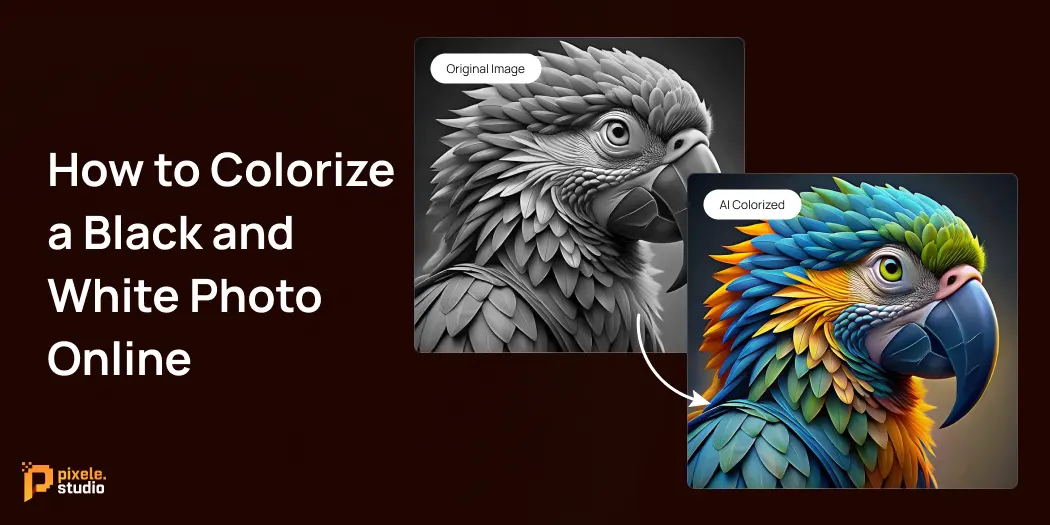
Benefits of Using an Image Background Remover for E-commerce

E-commerce has become one of the most popular tools to sell products online. Customers cannot touch or try the products, so they only see the pictures. If the product images look messy or dirty, customers will not trust the product and may not buy it.
Good product photos can make a big difference for your online business. But getting clean, consistent images often takes more than just a good camera. That’s why an image background remover is so important for e-commerce businesses to create great-looking product catalogs.
In this blog, we will explain the main benefits of using an image background remover for e-commerce and why online stores should use a background removal service.
Let’s get started!
Why do E-commerce sites Need Background Removal?
Many e-commerce websites have rules about what your product photos should look like. Big marketplaces like Amazon, eBay, and Etsy often require a clean, white background for the main product picture.
This rule helps create a consistent look across the site, making it easier for customers to compare items and giving the platform a more professional feel.
Beyond what marketplaces require, removing backgrounds also solves common problems. Original product photos often have distractions like shadows, messy backgrounds, or poor lighting. These make products look less professional and can make customers trust your brand less.
When customers can see your products clearly, they’re more likely to buy them. Clean backgrounds also make it easy to use the same product photos on your website, social media, and other marketing materials.
Key Benefits of Image Background Remover for E-commerce

A background removal service offers many benefits for e-commerce, such as making product images cleaner, more professional, and more attractive to customers. Here are some benefits you can expect from using an image background remover tool:
1. Improved Product Visibility
In e-commerce, product images are the first thing customers notice. If the background is messy or distracting, it can take attention away from the product itself.
An image background remover helps by removing everything unnecessary from the image and keeping only the product in focus. This makes the product more visible, clear, and attractive to potential buyers.
Customers can easily see the colors, shape, and details of the item, which helps them make a faster buying decision. Clean and clear images also make your online store look more professional and organized.
Overall, improved visibility of your products increases the chances that shoppers will notice, click, and eventually buy your products.
2. Enhances Marketplace Compatibility
Most online stores have rules about how product pictures should look.
For example, Amazon requires main product photos to have a white background, and other marketplaces have similar rules. Using a professional background removal service helps make sure your product photos follow these rules so your listings don’t get rejected.
Following these image rules can also help you show up higher in search results on these websites. This means more people will see your products without you having to pay for ads, which can lead to more sales.
3. Builds Brand Consistency
A consistent look for all your products builds a professional brand image. When all your product photos have the same clean, white background, customers notice your brand’s attention to detail and quality.
This consistency should be maintained across all platforms, not just your website. When customers see your products on different channels or in various ads, a uniform background helps them recognize your brand and builds trust.
4. Higher Conversion Rates
Good product images help you sell more. In fact, studies show that professional photos can boost sales by up to 30%. When customers can clearly see what they’re buying, they feel more sure about buying it.
Removing backgrounds for e-commerce makes your images cleaner and less distracting, helping customers focus on your product. Clear, simple images create a better shopping experience and encourage people to buy.
5. Cost-Effective Solutions
Professional photography studios can be expensive, especially for small businesses with large product catalogs. AI background remover tools offer an affordable alternative that delivers professional results without ongoing studio costs.
These cost savings are especially helpful for businesses that often update products or release seasonal catalogs. Instead of taking new photos for everything, you can simply remove the background from images and keep a consistent, professional look for all your products.
Easily remove any photo with our background remover tool. Get a smooth, transparent result in one click.
6. Improves Website Loading Speed
Large or complicated product images can make your website slow to load. A slow website can frustrate customers and even make them leave without buying.
Luckily, using an image background remover can help make your images smaller and simpler by removing unnecessary parts. This reduces the file size, so your pages load faster.
Faster-loading websites give a better shopping experience for customers. They can browse products quickly, see images clearly, and make faster buying decisions.
7. Increase Sales
Good product pictures make customers trust your items more, so they’re more likely to buy. If your products look high-quality and reliable, customers will be happy to pay more for them.
Clear backgrounds also make it simple to show off different product options, colors, and features. This better display helps customers easily find what they’re looking for, which often means they’ll buy more.
8. More Traffic
Using an image background remover can help your products get more attention on e-commerce sites like Amazon, eBay, and Newegg. Clean and clear images stand out, which makes it easier for customers to notice your products.
When your product images are professional, they are more likely to appear in search results and be clicked by shoppers. On the other hand, messy or cluttered images can get ignored.
By showing your products on a plain white or light-colored background, you increase their visibility. This brings more visitors to your listings, which can lead to higher sales and better growth for your online store.
9. Professionalism and Trust
First impressions are most important in e-commerce. Plain backgrounds immediately communicate quality and reliability to potential customers.
Trust plays a major role in online purchasing decisions. When customers see professional product photos, they feel more confident about product quality and seller credibility, leading to higher conversion rates and customer loyalty.
Conclusion
The benefits of a background removal service go far beyond just editing images. Clean and professional product photos help build trust with customers, improve conversion rates, and make your store more competitive in busy online marketplaces.
Whether you use AI-powered tools or professional services, removing backgrounds is a smart investment. It can lead to more sales, a stronger brand image, and happier customers.
To start, try the image background remover tool like Pixele Studio on your best-selling products. This will give quick results and show how much better your store looks. Later, you can apply it to your entire product catalog.
Frequently Asked Questions
It’s a tool that removes the unwanted background from product photos, so the item stands out clearly. This helps your images look neat, professional, and ready for online stores.
When customers shop online, they rely on what they see. A clean background makes the product more visible and trustworthy. It boosts clarity, creates brand consistency, and helps improve conversions.
Yes. Clean, consistent, and professional‑looking images help customers trust your brand and click “Buy”. Many sellers report higher sales when their product photos look better.
Absolutely. Most online marketplaces require or favor product images with plain (often white) backgrounds and clear product focus. A background remover helps you meet those rules easily.
No. Many tools are designed for ease of use: you just upload the image, click remove background, and download the result. Advanced features may exist, but basic usage is simple.
Good tools preserve the details of your product (edges, texture, color) while removing the background. Quality can drop if you use low‑quality tools or very poor original images.
Not only. While white or light neutral backgrounds are standard for product listings, a background remover gives flexibility—you can switch to any plain color, transparent background, or custom style as needed.
It depends on the tool and volume of images. Many tools offer free or low‑cost options. For large image volumes or high‑end edits, there may be subscription or pay‑per‑image models.
Bipin Sakariya is the Co-Founder & CTO of Tagline Infotech, leading AI-driven technology initiatives and building future-ready digital solutions for global businesses.
Recent Blog
Top 5 Mistakes to Avoid When Using AI for Image Creation

Artificial Intelligence is revolutionizing how we design and visualize ideas. With advanced tools that let you generate AI images online, anyone—from marketers to designers can create stunning visuals in seconds. The process is faster, more flexible, and incredibly creative.
However, not every image created by AI turns out as expected. Whether you’re experimenting with an AI image generator or crafting visuals for social media campaigns, a few common mistakes can make your images look unrealistic or off-brand.
In this blog, we’ll explore the top five mistakes to avoid when using AI for image creation—plus practical tips to help you create more natural, high-quality, and goal-driven visuals.
1. Relying on Default Prompts
One of the biggest mistakes users make is depending on default or vague prompts. When you simply type “a woman smiling” or “a city view,” the AI doesn’t have enough context to generate something unique or professional.
The secret to creating exceptional AI-generated images lies in detailed, descriptive prompts. Mention the mood, lighting, composition, and even the camera angle. For instance:
Instead of “a city view,” try “a cinematic night skyline with glowing neon lights reflecting on wet streets, ultra-realistic style.”
By refining your prompts, you’ll get images that feel personalized and far more realistic. If you’re unsure where to start, experiment using Pixele Studio’s AI Image Generator — it’s designed for both beginners and professionals who want high-quality, customizable results.
2. Ignoring Style and Lighting Consistency
A common issue in AI for image creation is inconsistent lighting and style, especially when creating multiple visuals for the same project. One image might look bright and vibrant, while another looks dark or mismatched.
For brands and marketers, this inconsistency breaks visual harmony and reduces audience trust. To fix this, maintain the same tone, lighting, and color palette across all your designs.
When using an AI Image Generator for Marketing, save successful style prompts or apply similar filters to ensure all visuals align with your brand identity. Think of your images as a series—each should feel like part of one visual story.
3. Overusing Filters and Effects
It’s tempting to enhance every AI-generated image with fancy filters or effects, but overdoing it can destroy realism. Too much saturation or artificial blur can make the image look fake, defeating the purpose of AI realism.
The goal should be enhancement, not exaggeration. If you’re using AI visuals for ads or campaigns, keep the editing subtle—adjust contrast, fix tones, and sharpen details only where necessary.
Balanced editing makes visuals appear more natural and emotionally appealing, which is essential when using AI Image Generator for Marketing materials like banners or product promotions.
Write a few words and see them come alive as pictures within seconds.
4. Skipping Post-Editing and Refinement
AI is powerful, but it’s not perfect. Many creators skip the vital post-editing step after generating their images. Whether it’s fixing small distortions or improving proportions, manual refinements elevate the final output from “AI-made” to “professionally crafted.”
Professional designers & creators often use AI as a base, then enhance it with editing software to achieve the perfect finish. This hybrid workflow—AI plus human creativity—produces the most polished and natural results.
Even quick touch-ups like adjusting shadows, smoothing textures, or cropping the composition can make a huge difference.
5. Forgetting the Purpose of the Image
A beautiful visual is useless if it doesn’t serve its purpose. Many people get caught up experimenting with styles and effects, forgetting why they’re creating the image in the first place.
Before you generate AI images online, ask yourself:
- Is this for marketing or personal branding?
- Will it be used on social media or a website?
- Does it match the emotion or message I want to convey?
For instance, when creating profile pictures with AI, focus on realistic expressions, clean backgrounds, and professional lighting. Pixele Studio’s “Make Profile Pictures” feature simplifies this by automatically optimizing your image for social and business platforms.
Defining intent ensures every visual feels meaningful and relevant to your audience.
Bonus Tips: Get the Most Out of AI for Image Creation
To consistently generate professional-looking AI visuals, follow these expert tips:
- Refine your prompt – The more specific your description, the better the result.
- Use reference images – Guide the AI toward your desired style.
- Test multiple variations – Generate 3–5 options before choosing the best.
- Combine AI and manual edits – Use AI for speed, human creativity for perfection.
- Stay on-brand – Use similar tones and fonts to keep visuals consistent.
When used thoughtfully, AI can amplify creativity rather than replace it. It’s all about guiding the tool with purpose and precision.
Conclusion: Create Smarter, Not Harder with AI
AI tools have democratized creativity—anyone can now design beautiful, realistic visuals in minutes. But like any creative process, success depends on how you use the technology.
By avoiding these common mistakes and focusing on clear intent, consistency, and refinement, you’ll unlock the full potential of AI for image creation.
Ready to take your visuals to the next level?
👉 Try Pixele Studio’s AI Image Generator and start creating stunning, high-quality images that look real, professional, and perfectly tailored to your brand.
Frequently Asked Questions
Unrealistic AI images often happen because of vague prompts, poor lighting descriptions, or excessive post-editing. Always provide clear instructions—like the mood, lighting, and composition—and avoid overusing filters to maintain realism.
To create professional-looking visuals, use descriptive prompts, ensure consistent color tones, and refine your images after generation. Tools like Pixele Studio’s AI Image Generator let you fine-tune details for natural, photo-quality results.
The biggest mistakes include using generic prompts, skipping post-editing, ignoring visual consistency, and forgetting the image’s purpose. Addressing these issues can dramatically improve your AI-generated images.
AI tools are great assistants but not full replacements for human creativity. They speed up design work and spark ideas, but designers & creators still play a key role in refining, curating, and aligning visuals with brand identity.
Absolutely. Many brands use AI Image Generator for Marketing campaigns to produce product photos, ads, and social media creatives quickly. Just ensure your visuals stay consistent with your brand’s tone and style.
Choose a reliable platform like Pixele Studio that offers customizable options, reference support, and realistic rendering. Experiment with variations, refine your prompts, and test outputs until you achieve your ideal result.
Yes! With tools like Pixele Studio’s Make Profile Pictures feature, you can instantly create authentic, high-quality profile images that suit personal or business use. The key is choosing natural poses and clean backgrounds.
Rakesh Mahale is the SEO Team Lead at Tagline Infotech, specializing in AI-driven SEO strategies that boost organically digital visibility and business growth.
Recent Blog
The Complete Guide to Realistic AI Image Generator

AI is reshaping the creative world faster than ever before. Today, content creators, marketers, and designers no longer need complex tools or professional photo setups to create stunning visuals. With platforms like the Realistic AI Image Generator, producing lifelike visuals has become effortless and accessible to everyone.
Instead of spending hours editing or searching for the perfect image, you can now generate visuals that match your exact idea in just a few seconds.
The results look incredibly natural — complete with realistic lighting, accurate details, and depth that mirrors real photography.
From designing marketing materials and product mockups to enhancing blog posts or social media visuals, realistic AI tools make content creation faster and more flexible. They help you maintain creative control while saving both time and resources.
If you’ve ever wondered how to make realistic AI images that look natural and professional, this guide explains everything — from how it works to how you can start creating your own in minutes.
What Is a Realistic AI Image Generator?
A Realistic AI Image Generator is a smart tool that uses machine learning to create visuals that look like real photographs. It takes simple text prompts — like “a man walking in the rain under neon lights” — and turns them into stunning, lifelike images.
Unlike abstract or artistic AI tools, realistic generators focus on photo-realistic AI images that mimic real-world lighting, colors, and depth. The result is content that looks authentic and fits naturally into marketing campaigns, websites, or social media posts.
For businesses, this means endless creative potential. Instead of searching through stock photo libraries, you can instantly generate custom visuals that match your brand’s tone, audience, and style.
How Realistic AI Image Generation Works
AI image generation relies on advanced algorithms and massive datasets of real photos. These tools are trained to understand the structure of objects, human anatomy, lighting, and perspective — allowing them to recreate realistic visuals from written prompts.
Here’s how it works step by step:
- Prompt Input: You describe what you want to see — such as “a cozy living room with soft lighting and a cat on the sofa.”
- AI Understanding: The system breaks down your words into concepts like color, lighting, texture, and composition.
- Image Creation: Using diffusion or neural network models, it gradually forms a realistic image from noise.
- Refinement: The tool enhances lighting, sharpness, and detail to make the final output look natural and polished.
Tools like Pixele Studio’s AI Image Generator make this entire process simple — no coding, no experience, just creativity and clear prompts.
Benefits of Using Realistic AI Image Generators

Realistic AI image tools offer several benefits for creators, brands, and professionals.
1. Save Time and Resources
Forget long photo shoots or design delays. AI-generated visuals take seconds to produce, helping teams move faster.
2. Cost-Effective Visual Creation
With an AI generator, you can create hundreds of visuals without paying for individual stock images or photographers.
3. Creative Freedom
You’re not limited by what’s available online. Describe your idea, and the AI brings it to life — even if it doesn’t exist in real life.
4. Consistency Across Projects
Keep a unified visual style for ads, websites, and campaigns. It’s perfect for building brand identity.
5. Enhanced Engagement
Realistic visuals feel more authentic, making posts more likely to go viral on social media or perform better in ads.
Realistic AI Images vs Stock Photos
| Feature | Realistic AI Image Generator | Stock Photos |
|---|---|---|
| Customization | Fully customizable using text prompts | Limited to pre-shot angles |
| Cost | Affordable or subscription-based | Often charged per download |
| Originality | 100% unique creations | Reused by multiple brands |
| Quality | Photo-realistic and high-resolution | Real but limited options |
| Flexibility | Unlimited creative control | Dependent on availability |
In short, AI generated realistic images give you full control — from lighting to subject — without the licensing limits or repetitive visuals of stock libraries.
Use Cases for Realistic AI Images

Realistic AI images are transforming how individuals and businesses create visual content. Whether you’re a designer, marketer, or creator, these images can help you produce eye-catching visuals without the cost or complexity of traditional photography. Here’s how different professionals can benefit:
For Marketers
Marketers can use photo-realistic AI images to build high-quality campaign visuals, product advertisements, and landing page graphics that grab attention instantly. Instead of relying on generic stock photos, AI-generated visuals allow for customization that aligns perfectly with your brand’s message and color palette.
For Designers
Designers can experiment freely with AI Photo Makers to create mockups, background concepts, and visual prototypes in minutes. It’s an ideal way to test new creative ideas without spending hours on manual edits.
For Content Creators
Content creators, especially YouTubers and bloggers, can use AI image generators to make stunning visuals that elevate their content quality. You can easily design YouTube thumbnails that look professional, consistent, and on-brand — all without needing graphic design experience.
For Businesses
Businesses can use AI-generated realistic images for a variety of purposes — from promotional banners and product catalogs to training materials and presentations. It’s a cost-effective way to maintain a polished, professional image across websites, digital ads, and social media platforms.
For Social Media Managers
Social media managers can leverage realistic AI visuals to create posts that capture attention while maintaining authenticity. With just a few prompts, they can produce content that resonates with audiences, drives engagement, and helps brands go viral on social media.
The Future of Realistic AI Image Generation
AI technology is moving fast — and realism is at the center of it. In the next few years, we’ll see tools that can generate not just still images but entire 3D scenes, videos, and dynamic lighting effects.
Realistic AI generators will also integrate deeply into design tools, enabling users to adjust lighting, textures, and facial expressions in real time. As these models become more advanced, photo realistic AI images will blur the line between digital and real-world visuals.
For brands and creators, this means faster production cycles, better personalization, and visuals that perfectly fit any audience or trend.
Write a few words and see them come alive as pictures within seconds.
Conclusion
The Realistic AI Image Generator is redefining how visuals are created in the digital world. It’s quick, accessible, and capable of producing professional-grade results — even for users with no design background.
Whether you’re working on ads, blog visuals, or creative campaigns, AI image tools offer the perfect balance of creativity, control, and efficiency. They make it possible to create AI generated realistic images that connect with audiences and elevate your brand presence.
Start exploring now with Pixele Studio’s AI Image Generator and turn your imagination into reality within seconds.
Frequently Asked Questions
A Realistic AI Image Generator is a tool that uses artificial intelligence to create lifelike visuals from text prompts or ideas. It can produce images that look as if they were captured by a real camera, complete with natural lighting and fine details — all without needing photography skills.
AI tools are trained on large datasets of real-world photos. They learn how textures, lighting, and shadows work, then apply this understanding to generate new, photo-realistic AI images that look authentic and high-quality.
Yes, most platforms allow you to use AI-generated realistic images for personal and commercial projects. However, it’s best to check the usage rights or licensing policy of the AI tool you’re using to ensure full compliance.
You can use realistic AI visuals for marketing campaigns, YouTube thumbnails, product mockups, blog graphics, and social media posts. They’re great for making your content look professional and helping your brand go viral on social media.
Start by choosing a high-quality AI image generator and write clear prompts that describe your desired image style, tone, and color scheme. The more specific you are, the better the results. You can also make small edits later using photo tools for final touches.
In many cases, yes. Unlike stock photos, AI visuals are fully customizable and unique. You can generate images that perfectly match your concept, saving time and avoiding repetitive visuals used by others.
The future looks promising — with advanced AI models offering more control, accuracy, and creative flexibility. Soon, creators will be able to produce ultra-realistic, dynamic visuals that blend seamlessly with real-world imagery.
Bipin Sakariya is the Co-Founder & CTO of Tagline Infotech, leading AI-driven technology initiatives and building future-ready digital solutions for global businesses.
Recent Blog
How to Make AI Art For Free: Step-by-Step Guide

AI art has opened a new world of creativity for everyone. Today, anyone can turn a simple idea into beautiful artwork without spending money or learning complicated editing skills.
AI art generators make the process fast, enjoyable, and open to everyone. Whether you’re a beginner, a content creator, or someone looking for a unique image, these tools enable you to create stunning visuals in minutes.
In this guide, you’ll learn how to make AI art for free with quick and simple steps that suit all skill levels. Each step is easy to follow, so you can start making your own artwork right away.
By the end, you’ll know exactly which tools to use, how to get the best results, and how to turn your ideas into striking designs without spending any money.
What is AI Art?
AI art is artwork made with the help of artificial intelligence tools. It usually involves a text-to-image prompt and a generative AI model that transforms your words into creative images.
The AI models understand words, colors, and styles to generate a detailed and realistic work of art in seconds.
This type of art mixes human creativity with technology. Anyone can use it to make good-looking and original images without any drawing skills.
AI art is now a fun and easy way for people to explore their ideas and create digital artwork online.
How Do AI Art Generators Work?
AI art generators work with the help of smart computer systems called machine learning models. These models, like diffusion models and GANs (Generative Adversarial Networks), are trained on large collections of images and text. This training helps them understand how different objects, colors, and styles look.
Here is an easy-to-understand explanation of how AI art generators create images:
1. Training and Learning
The AI studies a huge collection of images and their descriptions. This helps it understand shapes, colors, objects, and styles. It also learns how different things relate to each other.
2. Understanding the Prompt
When you type a description, the AI reads it carefully. It figures out what objects, style, and details you want in the image.
3. Image Generation
- Start with Noise: The AI begins with a random pattern, like static on a TV screen.
- Step-by-Step Refining: Using your description, it slowly removes the noise and adds details to form the image.
- Refinement: This process repeats many times, each time making the image clearer and more detailed.
4. Final Image Creation
At the end, the AI produces a brand-new image based on what it learned during training. The image is original and not copied from any single picture.
Best Free AI Art Generators to Try
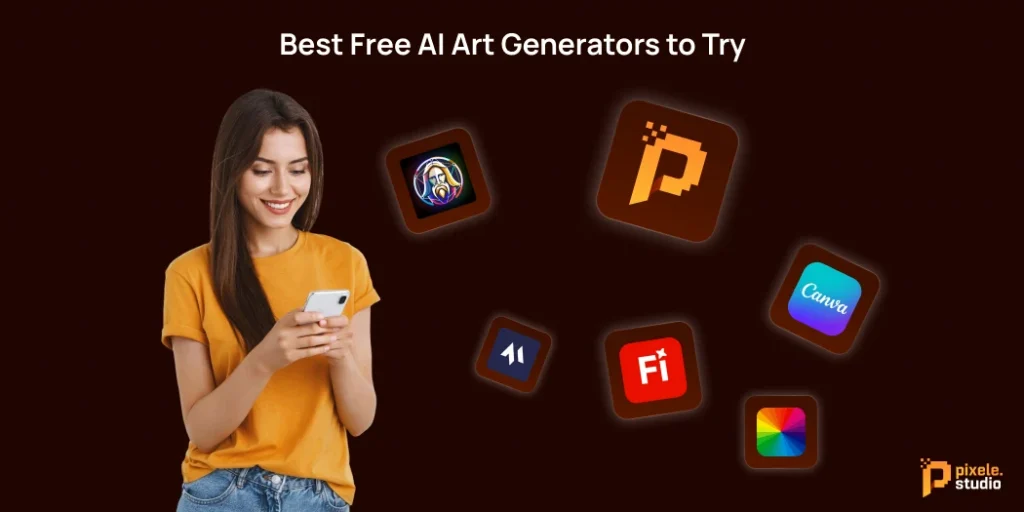
If you’re interested in how to create AI art for free, there are some great free-to-use, user-friendly tools available that can give you excellent results. We recommend the following tools:
1. Pixele Studio
Pixele Studio is a free AI art generator that creates images from text. Simply enter your ideas, and AI turns them into a unique digital artwork without any watermark.
With Pixele Studio, you can quickly make high-quality images for social media, personal projects, or creative experiments without any cost.
2. Canva
Canva is a popular design platform that now includes AI art features. You can generate unique images for social media, presentations, or personal projects easily.
3. Fotor
Fotor is a free AI art generator that lets you create amazing images online. You can turn your text ideas into pictures or improve your existing images with different styles. It is very easy to use, and you can make creative artwork in just a few seconds.
4. Magic Hour AI
Magic Hour AI is a free tool to make AI pictures in just a few seconds. You don’t need to sign up or pay. It is very easy to use and good for creating quick and fun images.
5. Adobe Firefly
Adobe Firefly is a reliable, trusted tool from Adobe that uses AI to generate AI images and designs. Great tool that produces quality graphics with seamless integration across different Adobe products and quality outcomes.
6. Leonardo AI
Leonardo AI is focused on creativity and customization. Users can generate their own individual custom focused AI art, be updated with new evolving styles, and create or modify existing images easily.
How to Make AI Art for Free: Step-by-Step Guide
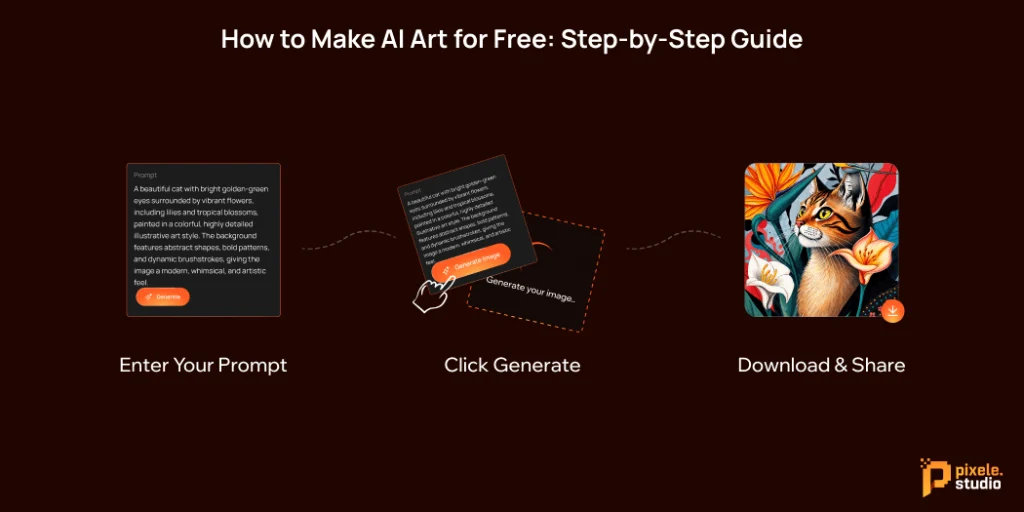
Here is a quick summary of the steps on how to make AI generated art for free on Pixele Studio (we will explain each step in detail later):
Step 1: Enter Your Prompt
The first step is to tell the AI what you want to create. This is called a prompt. You just type a short description of your idea in simple words.
For example, you can write what objects, colors, or styles you want in your image.
The more details you give, the better the AI can understand your idea and create a closer match to what you imagine.
Step 2: Click Generate
After typing your prompt, click the “Generate” button. The AI will start working and create your image. This process usually takes only a few seconds.
Step 3: Download & Share
Once your image is ready. You can download it directly to your computer or phone for free. Anyone can also share it online or use it for projects, social media posts, or personal artwork.
Why Choose Pixele Studio for Free AI Art Creation
Pixele Studio is one of the best free AI art tools, and there are many reasons to use it.
- Completely Free – Pixele Studio does not require any payment to create digital artwork. This makes it ideal for beginners, students, or anyone who wants to try AI art without spending money.
- Easy to Use – You don’t need drawing or design skills. The interface is simple and clear. Just type what you want to see, click generate, and the AI creates your image. This makes the process fast, fun, and simple.
- High-Quality Images – The AI has learned from millions of pictures, allowing it to create detailed and realistic artwork. Whether it’s a digital painting, creative picture, or modern design, the results look professional.
- Customizable Styles and Colors – You can adjust styles, colors, and details. This helps make artwork unique and perfectly matched to your idea.
- Fast Image Generation – The AI creates your image in just a few seconds. You don’t need to sign up or make an account — you can start creating immediately.
- Safe and Reliable – Pixele Studio is a trusted platform that generates original artwork. You can use it for social media, projects, or personal purposes with confidence.
In short, Pixele Studio is free, easy to use, fast, and produces high-quality images. It is a great choice for anyone who wants to learn how to make AI art and bring their ideas to life.
Simply enter your idea in the text box and create high-quality AI artwork from your text instantly.
Conclusion
Creating AI art is now simple and fun, thanks to free tools like Pixele Studio. You don’t need to be an artist or spend money to make amazing digital images. All it takes is your idea and a few easy steps.
Pixele Studio is easy to use, fast, and produces high-quality results. You can also change colors, styles, and details to make your artwork unique. It is a great choice for beginners, hobbyists, or anyone who wants to explore digital creativity.
With Pixele Studio, anyone can bring their ideas to life quickly and easily. Start creating your own AI art today and enjoy turning your imagination into real, beautiful images.
Frequently Asked Questions
AI art is digital artwork created with the help of artificial intelligence. You give the AI a description or text prompt, and it generates an image based on that idea using patterns it has learned from millions of images.
Yes, there are many free AI art tools, such as Pixele Studio, Canva, Fotor, Magic Hour AI, Adobe Firefly, and Leonardo AI. These allow you to create images without paying anything.
No, you don’t need any drawing or design skills. AI art generators do all the work for you. You only need to describe what you want in simple words.
Most AI art tools create images in just a few seconds. You type your prompt, click generate, and the AI quickly produces your artwork.
Yes, many tools let you adjust styles, colors, and details. This helps make your images look exactly how you want.
Some tools require registration, but many, like Magic Hour AI or Pixele Studio, let you create AI art without signing up.
You can use AI art for social media posts, digital projects, presentations, wallpapers, or personal creative experiments. Always check the tool’s license if you want to use the art commercially.
Yes, AI art is generated from scratch using learned patterns. It is original and not copied from existing images, making it safe to use for personal projects.
It depends on the AI tool. Some free tools allow commercial use, while others may restrict it. Always check the terms of use before using the images for business purposes.
Shantilal Materiya is the Founder & CEO of Tagline Infotech, driving innovation in AI-powered software solutions and helping businesses embrace the future of digital transformation services.
Recent Blog
8 Best Free Photo to Sketch Converter in 2025

Want to transform your favorite photos into beautiful sketches without high cost or downloading any software? You have come to the right place.
Turning a digital photo into art used to require real drawing skills and a lot of time. Now, with technology, anyone can achieve this effect in just a few seconds.
A free photo to sketch converter is a great way to instantly convert your pictures into unique drawings. This is useful for social media posts, unique personalized gifts, or just for fun.
These powerful tools use algorithms to analyze your image and apply a variety of sketch effects, like pencil drawing. The results will look like authentic hand-done pieces of artwork.
In this blog, we will discuss the list of the best free photo to sketch converters you can use right now. Whether you want a quick one-click solution or a tool that lets you fine-tune every detail, we’ve got you covered.
Let’s start!
What to Look for in a Good Photo to Sketch Converter
When searching for the best online photo to sketch converter, there are a few key features to consider to ensure you get the results you want.
- Ease of Use: A good tool should be easy to use and simple to understand. Just upload your photo and apply a sketch effect in just a few clicks. No need for any artistic skills. Look for a tool that feels smooth, quick, and beginner-friendly.
- High-Quality Output: The final output should be high-resolution and free of watermarks, especially if you plan to print the image or use it professionally. A great online photo to sketch tool will keep all the details of your original photo while transforming it into a beautiful sketch.
- Speed: The process should be very fast. You shouldn’t have to wait more than a minute to see your converted image.
- Platform Availability: You can verify whether each tool is available in web browser, mobile app, or desktop software formats. Some converters are completely browser-based, while others also offer Android or iOS versions so you can access your tools from anywhere.
Top 8 Free Photo to Sketch Converters

Here are the top 8 free photo to sketch converters you can try in 2025 to transform your photos into stunning pencil-style sketches.
1. Pixele Studio
Pixele Studio is the best free photo to sketch converter. It allows you to turn your photos into beautiful hand-drawn sketches in just a few clicks. You do not need to have any design skills or extra software to get amazing results.
The tool captures all the details of your original photo and creates clean, realistic sketches. Whether you want a simple pencil effect or a more artistic look, Pixele Studio makes it fast, easy, and completely free.
Key Features:
- Free to use: Produce stunning sketches without any payment. This is perfect for beginners, hobbyists, or anyone looking to try image to sketch tools.
- Multiple Sketch Styles: Choose from different styles like pencil, line art, Ink, or art effects. This lets you find the look that matches your creative vision.
- Easy Upload: Upload your photo and immediately convert. There are no difficult steps, so it’s fast and easy.
- High-Resolution Output: Your sketches are created in high quality, keeping every detail clear. The HD output makes them perfect for printing, sharing on social media, or using in professional projects.
- Fast Processing: Get your sketches in seconds. The tool is capable of working quickly without sacrificing quality, to save time and effort.
Pros:
- Free and simple
- Quick results
- No watermarks on downloaded images.
- User-friendly tool
Cons:
- Some advanced features may require a Paid subscription
2. BeFunky

BeFunky is a smart and easy-to-use app that works on both iOS and Android devices. Even on a mobile phone, it is powerful enough to turn your photos into sketches, line drawings, cartoons, or paintings. It makes creating fun and creative images simple for everyone.
Key Features:
- Multiple Sketch Styles: Choose from different styles like pencil, pen, charcoal, or comic effects to match your creative idea.
- Easy Customization: Adjust details like smoothness and line style to make your sketch look exactly how you want.
- Works on All Devices: BeFunky can be used on any device, including desktop computers, laptops, tablets, and smartphones. This means you can create sketches anytime, anywhere.
Pros:
- Smart editing features
- ease of use with one-click transformations
- Loads of AI-based tools
Cons:
- Some Features Require a Paid Version
- Dependent on the Internet
3. Image Online

This browser-based, free photo to sketch tool allows you to turn any image from your computer into a sketch easily. You can adjust the pencil shadow using a slider to get the look you want. The tool also shows the size of the processed file before you download it.
Just upload your image, choose the pencil shadow level, and convert. Once done, you can download your sketch directly to your computer.
Key Features:
- Support for various image types: You can upload different types of images, making it easy to work with photos in formats like JPG, PNG, and more.
- Adjustable settings: Allows users to customize the sketch by adjusting parameters like the level of pencil shading, intensity, or line work.
- Instant Preview: Once your image is ready, you can see the sketch immediately. This lets you check how it looks before downloading.
- Simple, one-click process: Allows for quick and easy conversion by simply uploading a photo and clicking a button, making it accessible to users of all skill levels.
Pros:
- Completely free to use
- Providing a variety of artistic styles
- Cost-effective solution
- Instant result
Cons:
- Limited customization options
- Lower quality
- Basic and simple sketch style only
4. Fotor

Fotor is a free photo to sketch converter that enhances your photos to high resolution with just a few clicks.
It automatically sharpens details, reduces blur, and increases image size, perfect for printing or sharing online.
Whether you’re working with portraits, landscapes, or artwork, Fotor helps you get crisp, clear images without any editing experience needed.
Key Features:
- Easy workflow: The process is very simple and smooth. Just upload your photo, choose a sketch style you like, preview the result, and download your final sketch. That’s it! No confusing tools, no extra steps.
- Works for all types of photos: Whether it’s a portrait, landscape, pet photo, or even a building, Fotor can turn any image into a realistic sketch while keeping the details clear.
- More creative filters: If you want to try something different, Fotor also offers fun art filters like painting, cartoon, and classic drawing effects to give your image a unique twist.
- Smart auto adjustments: Fotor automatically improves brightness, contrast, and shadows in your sketch to make it look more natural and detailed without you having to edit anything.
Pros:
- Download the image without a watermark.
- Excellent drawing filters
- Advance AI-powered features
Cons:
- Higher-quality results might require a paid subscription.
- Unsuitable for certain photos
5. Picsart

Picsart is a free photo sketch converter. Simply upload your image, and the AI will increase its resolution by up to 4×, making it sharper and clearer without any manual editing. It’s perfect for improving images for social media, printing, or design projects.
Key Features:
- One-tap sketch effects: Picsart offers instant sketch filters that turn your photos into drawings with just one tap. Try different effects like pencil, outline, or color sketch to see which style fits your image best.
- AI-powered customization: The built-in AI automatically detects faces, edges, and lighting in your photo to create accurate and detailed sketches. You can also fine-tune the results to match your personal style.
- Color editing: Add or adjust colors easily to make your sketch more creative. Whether you prefer a classic black-and-white look or a colorful art style, Picsart lets you customize every detail.
- Background control: For certain sketch effects, you can remove the original background and replace it with a white background or a custom one. This allows you to create versatile stickers or design elements.
- Free-to-use options: Picsart’s photo to sketch tools are completely free, so you can create as many sketches as you like without paying for expensive software.
Pros:
- Variety of trendy AI-powered effects
- Strong social integration
- Customizable results
Cons:
- Limited customization and artistic control
- Image quality degradation
- Performance and usability issues
6. Canva

While primarily known as a graphic design platform, Canva also offers a suite of photo editing tools, including effects that can help you convert photo to sketch online.
Its “Effects” panel has several options that can give your images a stylized, artistic look. It’s a fantastic choice for those who are already using Canva for their design projects.
Key Features:
- Automatic conversion: Canva quickly changes your photo into a sketch with one click. It’s smart AI understands outlines and shades, giving you a realistic pencil-drawn look instantly.
- Easy customization: You can easily adjust the brightness, contrast, and sketch intensity to get the perfect result. Mix sketch effects with Canva’s other filters to make your photo more creative.
- Creative design options: Once your sketch is ready, you can add it to posters, cards, or social media designs using Canva’s templates. It’s perfect for both fun and professional projects.
- Free and accessible: Canva’s sketch tool is free to use and works right from your browser. No downloads or design skills needed—just open, upload, and start creating.
- High-quality results: When you’re done, download your sketch in high resolution. The final image looks clean, clear, and ready to share anywhere you like.
Pros:
- Fast processing time; you see results instantly.
- Works online, so no software installation is needed.
- Very easy to use
- Helps create designs that look polished and ready for social media or simple projects
Cons:
- Free version limitations
- Lack of professional depth
- Need a good internet connection
7. Sketch My Pic

Sketch My Pic is another online platform that is designed exclusively for the task of converting an image into a sketch. It provides a few different sketch effects, a limited number of adjustments to change the sketch’s appearance. It’s a solid choice for a quick and simple conversion without the complexity of a full photo editor.
Key Features:
- Multiple sketch styles: You can choose from different sketch styles like pencil, color, or shaded sketches. It’s easy to try different looks and pick the one you like best.
- Easy upload: Uploading your photo is very simple. Just select your image from your device, and the tool quickly turns it into a sketch.
- 3D sketching: This feature adds depth to your sketch, making it look more real and artistic. Your photo won’t just be flat—it will have a 3D feel.
- High-quality results: The sketches come out clear and sharp. You can download them in high resolution and share or print them easily.
Pros:
- Free to use and accessible online through a web browser.
- Producing high-quality and realistic-looking output
- Experimenting with different art styles
- Time-saving
Cons:
- Performance issues at times
- Limited for advanced editing
- Artifacts and unnatural results
8. AirBrush

AirBrush is a mobile-first photo editor that excels at creating polished and beautiful images for social media.
While it’s known for its retouching tools, it also includes a library of artistic filters that can transform a photo into a sketch. It’s ideal for users who primarily edit on their smartphones.
Key Features:
- AI-powered conversion: The tool uses smart AI to automatically turn your photo into a detailed sketch. It detects edges, shapes, and shading to make your sketch look natural and realistic.
- Easy to use: The Airbrush is designed for everyone. Just upload your photo, pick a sketch style, and download your result. The process is simple and fast, with no complicated steps.
- Multiple art styles: You can choose from different sketch styles, such as pencil, line art, or colorful sketches. This lets you create the look you like best for your photos.
- Multi-platform availability: Airbrush works on both desktop and mobile devices, so you can create sketches anytime, anywhere, without any hassle.
Pros:
- Combines sketch effects with powerful retouching tools.
- No Sign-Up Needed
- Instant Results
- Save your sketch in high quality
Cons:
- Sometimes a sketch does not look exactly like a real hand-drawn one.
- Not perfect for complex photos
- Some Features require a paid subscription
Transform any photo into a clean, hand-drawn sketch in seconds with our easy photo-to-sketch tool.
Conclusion
Turning a photo into a sketch is a fun and creative way to give your pictures a fresh, new look. The best free photo to sketch converter for you depends on what you want. Some tools are very simple to use, some offer many styles, and others let you adjust details to your liking.
The tools listed here have something for everyone, whether you are just trying it for fun or want to create digital art.
We suggest trying a few different tools to see which one works best for you. Play with their features, adjust the settings, and watch your photos turn into beautiful sketches. You will be surprised how easy it is to create a little masterpiece with just a few clicks.
Frequently Asked Questions
A photo to sketch converter is a tool that changes your regular photo into a hand-drawn style sketch automatically. It can create pencil sketches, line art, or colorful artistic effects.
Yes, Pixel Studio is free. Some may offer additional premium features, but the basic sketch conversion can be done without paying anything.
No. Pixel Studio is very simple and beginner-friendly. You just upload your photo, choose a style, and download your sketch.
Pixel Studio works on both desktop and mobile devices, so you can create sketches from your phone, tablet, or computer.
You can convert portraits, landscapes, pets, buildings, or almost any type of photo. Some tools even offer special effects for 3D sketches or color sketches.
Yes. Most tools let you adjust brightness, contrast, sketch style, and intensity. Some also let you add colors or combine sketch effects with other filters.
After the tool creates your sketch, you can download it in high resolution. Common formats like JPG and PNG are usually supported.
Tools like Pixel Studio is great for beginners because they have a very simple and easy-to-follow workflow.
Yes. High-quality sketches from these converters can be used for social media posts, posters, digital art projects, or personal prints.
Most tools convert photos to sketches within a few seconds, depending on your internet speed and photo size.
Bipin Sakariya is the Co-Founder & CTO of Tagline Infotech, leading AI-driven technology initiatives and building future-ready digital solutions for global businesses.
Recent Blog
How to Upscale an Image Without Photoshop

Sometimes we capture great photos, but they turn out blurry or too small to use. Usually, people think Photoshop is the only way to fix this, but it’s not!
Today, you don’t need expensive software or editing skills to make your images look sharp and high-quality.
With the help of AI image upscaler tools, you can enhance and enlarge any photo in just a few seconds.
These smart tools use artificial intelligence to automatically detect details, reduce blur, and boost image resolution with one click. It’s fast, simple, and completely online.
In this guide, we’ll show you exactly how to upscale an image without Photoshop using easy, free AI tools that anyone can try. No design experience needed!
What is image upscaling?
Image upscaling is the process of increasing the size and resolution of a photo or image while keeping clarity and detail. In simpler terms, it is about taking a small or blurry picture and making it larger and crisper.
When you try to make a small image bigger using normal methods, it often turns blurry or pixelated. But now, this problem can be easily solved with the help of AI image upscaler tools that do the job smartly and automatically.
What Happens When You Upscale a Low-Resolution Image?
When you upload a low-quality or small photo to an AI upscaler, the tool improves it by filling in missing details.
Instead of just stretching the picture, these AI tools use smart technology to understand how to make it look clear and natural.
They use advanced systems called CNN (Convolutional Neural Network) and GAN (Generative Adversarial Network). Don’t worry about the technical names; these are just ways the AI learns how to upscale an image without losing quality in Photoshop, so your photo doesn’t look blurry or broken.
AI tools are much better than old photo editors because they don’t just make your photo bigger; they actually make it sharper, smoother, and more detailed.
If you try to enlarge a photo without AI, you’ll often see:
- Blurry edges
- Rough or jagged lines
- Lost textures and missing details
Many people think upscaling just means resizing an image. But that’s not true. Resizing only changes the dimensions, while resampling changes the pixels themselves, and that’s what makes the image clear.
Here’s a simple way to understand the difference:
- Resize an image: Just makes the photo bigger or smaller.
- Resample an image: Adds or removes pixels to keep the image clear while changing its size.
AI tools automatically handle this resampling process for you, so your photo becomes larger without losing quality.
Benefits of upscaling images using AI tools
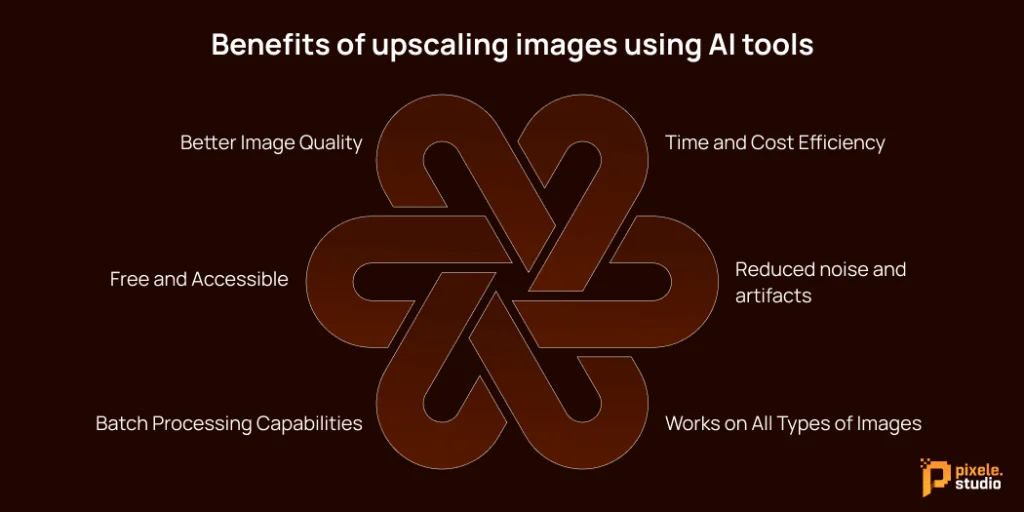
Sometimes we take amazing photos, but when we zoom in or try to use them for prints, they look blurry or too small. In the past, fixing this meant using Photoshop or other editing software, which can be hard to use and time-consuming. But now, AI tools make this job much easier and faster.
AI image upscalers can turn low-quality or small images into sharp, clear, and high-resolution ones within seconds. Let’s look at the main benefits of using AI tools for upscaling images.
Better Image Quality
One of the biggest benefits of AI image upscalers is the improved image quality.
When you make a small photo bigger using normal tools, it often becomes blurry or loses detail. But AI uses smart technology to analyze your image and fill in the missing parts.
This means the final image looks natural, clean, and sharp, not stretched or pixelated.
Even old photos, screenshots, or images taken from social media can look brand new after upscaling.
Time and Cost Efficiency
Before AI, improving photo quality required a lot of time and skill. People had to spend hours editing manually or pay professionals for retouching.
But with AI tools, that’s no longer the case.
Most AI upscalers work online and can process your photo in just a few seconds. You simply upload the image, wait for the tool to analyze it, and download the improved version instantly.
This saves both time and money, especially for people who deal with large numbers of images, like photographers, e-commerce sellers, or marketers.
Reduced noise and artifacts
When you enlarge an image using traditional methods, it often creates unwanted ”noise”—small dots, grains, or rough patches on your photo. AI tools solve this problem beautifully.
They remove noise and artifacts while upscaling, so your image remains smooth and clean. AI can recognize the patterns, textures, and objects in your picture and enhance them intelligently without losing detail.
Enhance your photos effortlessly with our AI image upscaler. Increase your high-resolution photo in seconds.
Works on All Types of Images
AI image upscalers are very flexible. They can work on all kinds of pictures, like portraits, product photos, landscapes, digital art, or even illustrations.
Whether you’re editing a personal selfie, a business banner, or a product image for an online store, AI tools adjust the photo automatically to get the best possible result.
Batch Processing Capabilities
If you need to upscale many images at once, some AI tools also support batch processing.
This means you can upload a whole folder of photos, and the tool will enhance all of them automatically.
It’s a huge time-saver for people who manage large image collections, like eCommerce sellers, real estate agents, or content creators. Instead of upscaling one photo at a time, you can process dozens or even hundreds of images together.
Free and Accessible
One of the best things about AI image upscalers is that many of them are free and easy to access online.
You don’t need to buy expensive software or have editing skills. Most websites offer free versions that give amazing results in just a few clicks.
Top Free AI Image Upscaler Tools Online
If you want to make your images bigger and clearer without Photoshop, there are some great AI upscale tools online that can help, and the best part is that many of them are free. Here’s a list of the top options you can try.
Pixele Studio
Pixele Studio is a free AI image upscaler that works on both Android and iOS devices.
It helps you make your photos bigger, sharper, and clearer in just a few clicks.
You do not need Photoshop or any special skills. Just upload your image, and the AI will enhance it automatically.
It’s perfect for selfies, product photos, or any picture you want to improve quickly.
Pixelcut AI
Pixelcut is a free AI image upscaling tool that enhances your photos to high resolution without any hassle.
With Pixelcut, you can instantly improve image quality and increase resolution to 4K. Just upload your image, and the AI does the rest, providing you with a high-quality result in seconds. It supports multiple file types.
Clipdrop upscaler
Clipdrop Image Upscaler is a free and easy-to-use online tool that makes your images bigger and clearer.
You just upload your photo, and the AI automatically improves its quality. It works fast, doesn’t need Photoshop, and is perfect for social media, product photos, or any picture you want to enhance.
Freepik
Freepik’s AI Image Upscaler is a free, easy-to-use tool that enhances your images up to 16 times their original resolution.
Powered by the advanced Magnific AI engine, it sharpens details, restores textures, and preserves the essence of your visuals.
Whether you’re a designer, photographer, or casual user, this tool helps you elevate your images effortlessly.
Picsart
Picsart offers a free AI image upscaler that makes your photos sharper and clearer in seconds.
You just upload your image and click a button, and the AI increases resolution (up to 4×) while preserving quality. It’s fast, easy, and doesn’t require any editing skills.
How to upscale an image without Photoshop (3 Easy Steps)
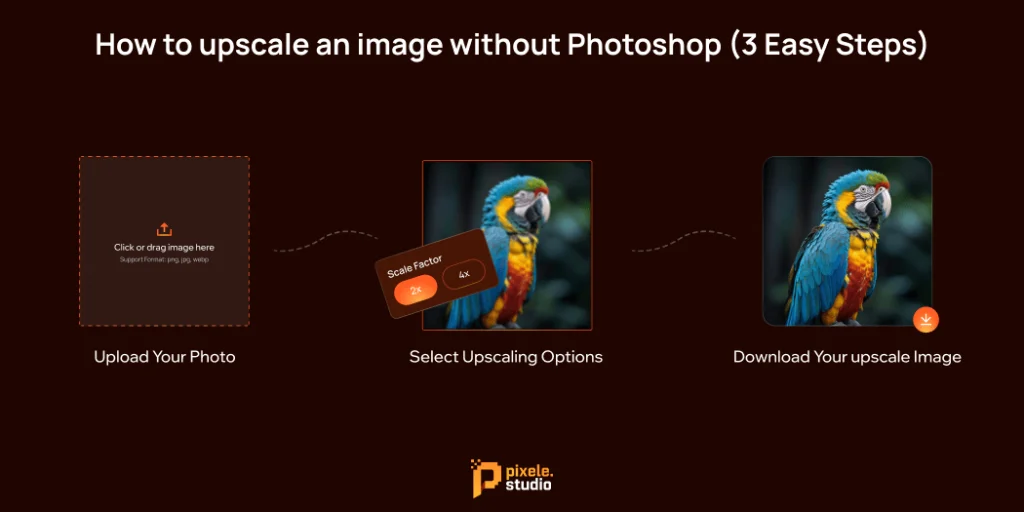
Learning how to AI upscale an image is surprisingly simple when you follow this straightforward process. These steps work with most online AI upscaling tools and will help you achieve professional results every time.
Step 1: Upload Your Photo
Choose the photo you want to enhance and upload it to the AI upscaler tool. Pixele Studio tools support popular formats like JPG, PNG, WEBP, HEIF, and HEIC. You don’t need any setup, just drag and drop your image directly onto the website.
Step 2: Select Upscaling Options
Once your image is uploaded, pick your preferred upscaling level, usually 2x, 4x, or higher.
The AI will automatically analyze your photo and start enhancing it by adding more pixels, reducing blur, and improving details for a crystal-clear look.
Step 3: Download your upscale image
After processing, your high-resolution image will be ready for download. You can use it anywhere for social media, websites, printing, or product photography.
Conclusion
Learning how to upscale an image without Photoshop lets you improve your pictures easily, without spending a lot of money or learning complicated software. Today’s AI tools can give results that used to require professional skills.
Start with one of the free tools mentioned in this guide and try different options to see what works best for your images. The secret to great results is picking the right tool for your type of image and using the right settings.
Whether you’re enhancing photos for a presentation, improving family pictures, or creating content for your business, these AI tools make professional-quality image enhancement simple and accessible. And as the technology keeps getting better, knowing how to upscale images will become an even more useful skill in our visual world.
Frequently Asked Questions
Upscaling an image means increasing its size and resolution while keeping it sharp and clear, without losing quality.
Yes! You can use free or paid AI-powered tools to upscale images without Photoshop. These tools are easy to use and produce professional-quality results.
Pixele Studio is one of the best AI tools for upscaling images. It quickly improves the resolution of your photos, artwork, or illustrations while keeping them sharp and clear.
Yes, many free AI upscalers like Pixel Studio deliver excellent results, especially for personal projects, social media content, or small business visuals.
Most AI tools support common formats like PNG, JPG, JPEG, WebP, HEIC, and HEIF. Always check the tool’s specifications before uploading.
Yes! AI upscaling can increase resolution to make images suitable for printing without losing clarity.
Generally, yes, but always use trusted websites. Avoid uploading sensitive or private images to unknown platforms.
It usually takes just a few seconds to a couple of minutes, depending on the image size and the AI tool you use.
If used correctly, AI upscaling improves image quality and sharpness. Overdoing settings may introduce slight artifacts, so adjust carefully.
Shantilal Materiya is the Founder & CEO of Tagline Infotech, driving innovation in AI-powered software solutions and helping businesses embrace the future of digital transformation services.
Recent Blog
Top 8 Free AI Background Remover Tools Online

Imagine easily changing your pictures with just a few clicks, making amazing images without needing special editing skills. Welcome to Free AI Background Removal, where smart tools make things simple.
With these tools, you can remove the image background in just a few seconds without Photoshop or any design skills. Just upload your image, and the AI background remover does all the work for you.
Whether you’re an eCommerce seller, content creator, or photographer, these AI background remover tools online help you get clean, transparent images ready for any project.
They’re fast, accurate, and completely free to use. From product photos to profile pictures, you can create professional-quality visuals with zero effort.
In this blog, we’ll explore the Top 8 Free AI Background Remover Tools Online that help you save time, improve image quality, and boost your creativity.
Let’s dive in and see which tool gives the best results!
What is an AI Background Remover?
An AI background remover is a smart tool that automatically removes the background from your photos using artificial intelligence.
Instead of spending time manually erasing, the AI scans your photo, detects the main subject, and separates it from the background within seconds.
These tools are perfect for creating transparent, white, or customized backgrounds, making them ideal for product photos, marketing visuals, and social media posts.
This makes the process faster, more accurate, and accessible to everyone, regardless of their technical skill level.
Top 8 Free AI Background Remover Tools
Here are the top 8 free AI tools to remove background that can help you create stunning, background-free images.
1. Pixele Studio

Pixele Studio is one of the easiest and most reliable free AI background remover tools available online. Transform your photos in seconds with Pixele Studio, an easy-to-use AI-powered background remover made for everyone.
Whether you’re a business owner, designer, or just someone who loves editing images, Pixele Studio helps you create clean, professional visuals without any editing skills.
The tool uses smart artificial intelligence to automatically detect your main subject and remove the background perfectly — no manual work or complicated software required.
How to Remove Image Background Using Pixele Studio
Step 1 – Click on Upload your photo.

Step 2 – Pixele Studio AI works its magic until you have an image with a removed background.

Step 3 – Download the image

Key Features:
- Instantly remove background In One click: With Pixele Studio, you can remove any image background instantly. Just upload your photo, and one click AI does the magic!
- Supports multiple image formats: The tool supports all popular image formats like PNG, JPG, JPEG, WebP, HEIC, and HEIF, so you can easily upload photos from any device without worrying about compatibility.
- High-quality output: Enjoy high-quality outputs that maintain the integrity of your images, ensuring clean and professional-looking images.
- Free to use: Enjoy all these features completely free, and it’s also available for paid subscriptions.
2. Remove.bg

Remove.bg is one of the most popular & free AI background remover tools trusted by millions of users around the world. It’s known for its accuracy, speed, and ease of use.
Whether you’re editing product photos, profile pictures, or marketing visuals, Remove.bg helps you get clean, professional images within seconds.
How to Remove Image Background Using Remove.bg:
Step 1: Click on Upload Image and choose the photo you want to edit.
Step 2: Remove Image Background in Seconds
Step 3: Download your new, background-free image instantly
Key features:
- Automatic background removal: Instantly removes image backgrounds using advanced AI technology
- High-quality Result: The tool produces clean, professional-looking images with smooth edges and accurate cutouts, even around tricky areas like hair or fine details.
- Free and Premium Options: Users can remove backgrounds for free in standard quality, or choose premium plans to download HD images for higher resolution projects.
- Fast and User-Friendly: The tool works quickly and is easy for anyone to use, even without any photo editing experience.
3. InPixio

InPixio is a popular free AI background remover software that makes it simple to create clean, professional-looking images in minutes.
Whether you’re working on product photos, marketing visuals, or social media content, InPixio lets you remove or replace backgrounds without any technical skills.
How to Remove Image Background Using InPixio:
Step 1: Upload the photo you want to edit.
Step 2: Remove the background automatically
Step 3: Adjust settings for high-quality results
Step 4: Download your image instantly
Key features:
- Automatic AI Background Removal: InPixio uses smart artificial intelligence to automatically detect the main subject in your image and remove the background within seconds.
- User-Friendly Interface: The interface is simple and intuitive, making it easy for anyone to use.
- Customizable Editing Tools: InPixio also lets you refine your images after the background is removed. You can replace the background with a solid color, another image, or apply creative effects to make your visuals stand out.
- Free to Try: You can try InPixio for free to remove backgrounds and test its features.
4. Canva

Canva offers a simple and powerful AI background removal tool that delivers clean, high-quality images in seconds. It’s perfect for designers, marketers, and anyone who wants professional-looking visuals without spending hours on editing.
With Canva, you just upload your image and the AI automatically removes the background while keeping the photo sharp and detailed. There’s no need for manual editing — everything is fast, easy, and accurate.
How to Remove Image Background Using Canva:
Step 1: Upload an image to Canva.
Step 2: Use AI to remove the background.
Step 3: Adjust settings if needed.
Step 4: Download the edited image.
Key features:
- Automatic Background Removal: Canva uses advanced AI to detect and remove backgrounds instantly. You don’t need any editing skills — just upload your image, and the background disappears automatically.
- Customizable Backgrounds: After removing the background, you can replace it with colors, patterns, other images, or creative effects. This makes it easy to design professional visuals exactly how you want.
- Multi-Platform Access: Canva works on web browsers, desktop apps, and mobile devices. You can edit images anywhere, anytime, making it convenient for designers, marketers, and casual users alike.
5. PhotoScissors

PhotoScissors offers an AI image background remover tool that makes image editing simple and fast. Using advanced AI technology, it accurately detects the main subject and removes the background automatically.
Its intuitive interface allows you to upload images and get clean, professional results in just a few clicks. PhotoScissors is perfect for anyone who wants polished images without spending time on complicated editing tools.
How to Remove Image Background Using PhotoScissors:
Step 1: Click on Upload Image to PhotoScissors.
Step 2: Refine the selection
Step 3: Set a new background
Step 4: Download the result
Key features:
- AI-Powered Background Removal: PhotoScissors uses AI to quickly detect the main subject and remove the background in seconds, no manual editing required.
- User-Friendly Interface: The tool is simple and intuitive, making it easy for anyone to remove backgrounds without any prior photo editing experience.
- Real-Time Preview: You can see the results of the background removal instantly as you edit your image. This makes it easy to check your changes and make adjustments right away, saving time and ensuring your image looks perfect.
- Fast and Efficient: The AI processes images quickly, helping you save time while producing professional-quality results.
6. Pixlr

Pixlr provides a powerful and free AI background remover for anyone looking to edit images quickly and easily. Its intuitive interface allows you to upload a photo and let advanced AI technology remove the background accurately within seconds.
This tool is perfect for improving portraits, product photos, and social media visuals, giving your images a clean, professional look without any complicated editing.
How to Remove Image Background Using Pixlr:
Step 1: Go to Pixlr and open your image.
Step 2: Select the Cutout / Remove Background tool
Step 3: AI automatically removes the background
Step 4: Make small adjustments if needed
Step 5: Save and download your new image
Key features:
- Automatic Background Removal: Pixlr’s AI quickly detects the main subject in your photo and removes the background automatically, saving time and effort.
- Supports Multiple Image Formats: Works with popular formats, making it compatible with most devices and projects.
- Easy to Use: The interface is simple and intuitive, so anyone beginners and professionals can remove backgrounds without prior editing experience.
- Edge Refinement Tools: Pixlr allows you to fine-tune edges and make small adjustments for precise, professional-looking results.
- Free and Accessible Online: You can use Pixlr directly in your browser without installing software, and basic background removal is free.
7. Clipping Magic

Clipping Magic is a free AI background remover that lets you create clean, professional images in just a few clicks. By uploading your photo, the AI automatically detects the subject and removes the background with precision, giving smooth edges and natural-looking results.
How to Remove Image Background Using Clipping Magic:
Step 1: Upload your image.
Step 2: AI will automatically detect the main subject and remove the background.
Step 3: Use the green and red markers to refine any edges if needed
Step 4: Preview your image and make final adjustments.
Step 5: Download your background-free image in the desired format.
Key features:
- Automatic Background Removal: Clipping Magic uses advanced AI to quickly detect and remove the background from any image, saving time and effort.
- Precise Edge Detection: The tool handles tricky areas like hair, fur, or fine details, giving clean and professional cutouts.
- Customizable Editing Options: After removing the background, you can refine edges, adjust colors, or replace the background with a new image or solid color.
- User-Friendly Interface: The platform is intuitive, allowing beginners and professionals alike to remove backgrounds effortlessly.
- Real-Time Preview: See edits instantly as you adjust the background or make refinements, ensuring accurate results.
- Transparent Output Options: The tool lets you save images in transparent PNG format, making it easy to use your photos in designs, websites, and other creative projects without any background.
8. Fotor

Fotor provides a free AI tool to remove the background that is completely free to use. Users can upload any image and let the AI automatically detect and remove the background with accuracy and speed.
This tool is designed to make background removal easy for everyone, even if you don’t have any photo editing experience.
How to Remove Image Background Using Fotor:
Step 1: Upload the image you want to edit.
Step 2: Use AI to remove the background.
Step 3: Refine edges if needed.
Step 4: Download the edited image
Key features:
- Automatic Background Removal: Fotor uses advanced AI to quickly and accurately detect the main subject in your photo and remove the background, saving time and effort.
- Manual Editing Tools: The platform provides easy-to-use tools for fine-tuning selections and adjusting edges, giving you full control over the final result.
- Real-Time Preview: You can see changes instantly as you edit, making it simple to adjust and perfect your image before downloading.
- Multiple Output Formats: Fotor supports saving images in different formats, including transparent PNG, so your designs are compatible with any project or platform.
- User-Friendly Interface: The intuitive interface makes it easy for beginners and experienced users alike to create professional-quality, background-free images.
Easily remove any photo with our background remover tool. Get a smooth, transparent result in one click.
Conclusion
Having a dependable and free AI background remover can make a huge difference for anyone working with images. These tools save time, make tricky editing tasks simple, and help you create professional-quality visuals without spending a dime.
Whether you need a quick cutout for a social media post or a polished product photo for your e-commerce store, the tools we’ve listed offer excellent solutions.
Try a few of them to see which one works best for your workflow and style.
Frequently Asked Questions
An AI background remover is a tool that uses artificial intelligence to automatically detect the main subject in an image and remove or replace the background.
Yes, most reputable AI background remover tools like Pixele Studio, Remove.bg, and Canva are safe to use.
It depends on the tool. Many free AI background removers allow commercial use, but it’s best to check each platform’s terms of service before using images for business or e-commerce purposes.
No. These AI tools are designed to be user-friendly, allowing anyone to remove backgrounds with just a few clicks, even without prior photo editing experience.
Yes. Modern AI background removers are trained to handle tricky details, including hair, soft edges, and semi-transparent objects, delivering clean and precise results.
Most AI background removers support popular formats like PNG, JPG, and JPEG, making them compatible with almost any device or project.
Free versions may have limits on image resolution, file size, or the number of images you can process. For high-resolution or bulk editing, premium plans are often available.
Yes. Many tools like Canva, Fotor, and Pixele Studio allow you to replace the removed background with a color, pattern, or another image, giving you creative flexibility.
Most tools process images in just a few seconds, making them extremely efficient for both single images and small batches.
It depends on your needs. For simplicity and free use, Remove.bg and Pixele Studio are excellent. For full design flexibility, Canva or Fotor are great options.

Krishna Dudhat is an SEO Content Writer at Tagline Infotech, creating AI-optimized content that drives visibility, engagement, and digital growth.
Recent Blog
What is an AI Art Generator? How It Works & Popular Uses

In the last few years, technology trends have shown a big rise in new creative tools. One of the most exciting developments is the AI art generator, which can turn simple ideas into beautiful images.
AI art generators have become very popular recently, changing the way people create and share digital images.
This technology is widely used by artists, designers, marketers, and hobbyists to create visuals for social media, websites, and personal projects.
From unique marketing graphics to creative personal art, AI art generators make it easy for anyone to produce professional-looking images without traditional drawing skills.
But what is an AI art generator, and how does it work? Let’s explore this exciting technology and see how it brings imagination to life.
What is an AI Art Generator?
An AI art generator is a software tool that uses artificial intelligence to create art images from text descriptions. It allows anyone to generate creative AI art images without needing drawing skills or artistic experience.
Simply enter a text prompt, and the AI processes it to produce a unique artwork in seconds. The tool can create images in different styles, moods, and artistic techniques, giving users full creative flexibility.
These tools are used by artists, designers, and anyone who wants to create visuals quickly and efficiently.
Key features of AI art generator technology:
- Converts text prompts into artwork quickly and accurately.
- Generates artwork in multiple styles and moods
- Uses advanced AI models trained on millions of images
- High-resolution output
How Does an AI Art Generator Work?

AI art generators work by using advanced technology to create AI images from text. They are powered by machine learning models that are trained on millions of pictures and their descriptions, helping them understand how to generate new, unique artwork.
Here are the simple steps on how to actually work:
1. Training and analysis
During training, AI models study large collections of images with matching text descriptions. The AI learns to recognize patterns, colors, styles, and compositions.
This helps the system understand how words relate to visual elements, so it can create accurate and creative artwork later.
2. Text Processing
When you enter a text prompt, the AI first understands what you’ve written. Special AI programs then analyze your text, figuring out the main ideas like the subjects, styles, colors, feelings, and other artistic details you’ve asked for.
3. Image Generation Process
The system then creates images by putting together patterns it learned from the data it was trained on. Using special methods, the AI makes new pictures that match your words while still being original.
4. Refinement Process
An advanced AI art generator can improve image quality, adjust the design, and make sure the final result looks just right. Many platforms let users make changes by adding more prompts or adjusting settings.
Popular Uses of AI Art Generators

AI art generators aren’t just for professional artists anymore. They are now easy and fun tools that anyone can use to create unique artwork, explore new ideas, or bring their imagination to life.
Here are some of the most popular ways people use AI art generators:
1. Marketing and Advertising
Businesses use AI art generators to create unique marketing materials, social media graphics, and advertising visuals.
These tools allow companies to produce customized content quickly without hiring professional designers for every project.
Marketers can generate multiple variations of campaign visuals to test different approaches.
2. Content Creation
Bloggers, YouTubers, and social media influencers use AI art generators to create engaging thumbnails, featured images, and visual content.
The technology helps content creators maintain consistent posting schedules by providing instant access to relevant imagery.
3. For Personal and Commercial Art Projects
Individuals use AI art generators for personal creative projects, including custom artwork for homes, personalized gifts, social media profiles, and hobby-related content.
The accessibility of these tools has enabled more people to express themselves artistically.
4. Gaming and Entertainment
Game developers and entertainment companies use AI art generators to quickly create concept art, characters, backgrounds, and promotional materials. This helps speed up the early stages of creative projects.
5. Product Development
Designers and product developers use AI art generators to quickly see their ideas, create mock-ups of new products, and try out different designs. These tools speed up the creative process.
They let designers quickly visualize ideas before spending a lot of time on detailed development.
6. Education and Training
AI art generators are being used as learning tools in schools, colleges, and art programs. They help students understand art concepts, explore different styles, and practice creativity without needing advanced drawing skills.
Teachers and trainers can use AI generated art images to explain techniques, inspire projects, and make learning more interactive and engaging.
How to create an AI art generator: Step-by-Step Guide

Getting started with the AI art generator is really simple. Many websites and apps enable you to create art quickly.
Most free AI art generators don’t need any drawing skills and can give you great results in just a second.
Step 1: Choose a trusted AI Art generator
The first step is to choose a trusted and reliable AI art generator tool. There are many websites and apps available, both free and paid, that can transform your ideas into stunning AI-generated art images. A popular choice is Pixele Studio, known for creating realistic AI art photos quickly.
Step 2: Enter Your text Prompt
Once you have chosen an AI art generator, simply type your idea, theme, or style in easy words. The AI will convert your text and turn it into a beautiful art image in just a few seconds.
Step 3: Click “Generate”
After entering your prompt, click the “Generate” button to initiate the art creation process. The generator will analyze your input and produce a unique image based on your description.
Step 4: Download your AI art images
Once your AI generated art is ready, you can download it to your device. Save the picture in high quality, so you can use it for personal projects, social media, or even print it.
Why is Pixele Studio the best AI Art Generator?
Pixele Studio is one of the best AI art generators because it’s easy to use, packed with great features, and produces high-quality results. It combines smart AI technology with helpful tools for beginners and professionals alike.
Here are some reasons why Pixel Studio is the best:
- Advanced AI Technology: Pixele Studio uses advanced AI to create detailed and artistic results. Its AI is trained on a wide range of high-quality images, so it can understand complex AI image prompts and create artwork in different styles.
- Intuitive User Experience: The platform is designed to be easy for everyone, no matter their skill level. With simple menus, helpful suggestions, and the ability to see your artwork as you create it, making AI art is a smooth and straightforward process.
- Versatile Style Options: Pixele Studio lets you customize your artwork by choosing styles, colors, layouts, and formats. This makes sure the final design fits your project and creative ideas perfectly.
- Fast Processing Speed: The platform creates high-quality images quickly. You can try out ideas, test prompts, and improve results fast, making it perfect for projects with tight deadlines.
- Reliable Performance: Pixele Studio is always working well and available, so you can count on it for all your projects and deadlines. We regularly update and improve the service to make sure it stays cutting-edge in AI art generation.
Simply enter your idea in the text box and create high-quality AI artwork from your text instantly.
Conclusion
AI art generators are changing the way we create, making high-quality visual content easy for anyone to access. These tools use advanced technology to turn simple text descriptions into amazing artwork in just seconds.
As the technology improves, AI art generators are getting better at creating higher-quality images, offering more styles, and working faster. They’re becoming a great tool for businesses, artists, and anyone looking for unique visuals.
If you’re thinking about using AI art, it’s important to pick the right platform. Look for one that’s easy to use, produces great results, offers plenty of styles, and works quickly.
Try out a Pixele Studio AI art generator today and see how it can bring your creative ideas to life with ease!
Frequently Asked Questions
An AI art generator is a software tool that creates digital images based on text descriptions. It allows anyone to produce artwork without needing traditional drawing skills.
It uses advanced algorithms to understand the text prompt and generate visuals. The AI analyzes patterns from millions of images to create a unique picture based on the input.
No. Anyone can use an AI art generator. Simply type your idea, and the AI creates the image automatically.
AI-generated art can be used for social media posts, marketing content, websites, personal projects, or even as prints and merchandise.
It depends on the platform. Some AI art generators are free, like Pixel Studio, while others may require a subscription or purchase for high-quality downloads.
Yes. Pixel Studio can produce highly realistic images, while others focus on creative styles like cartoons, anime, or paintings.
Yes, if a trusted platform is used. It’s important to check privacy policies and avoid sharing sensitive personal information.
Shantilal Materiya is the Founder & CEO of Tagline Infotech, driving innovation in AI-powered software solutions and helping businesses embrace the future of digital transformation services.
Recent Blog
Best AI Anime Generator Tools In 2025

The world of anime art has greatly advanced with the use of artificial intelligence. In the past, anime characters took a lot of time and drawing skills to create. But now, with the use of AI anime generators, we can create beautiful anime art within a few seconds.
These tools are very simple and enjoyable to use. Simply enter any text, and the AI will produce anime-style images in one click.
This blog will discuss the best AI anime generators of 2025 that come with intelligent and creative features you can use online.
The best part is that you do not need to be an editor or designer to use them. Most of these tools can be used by beginners, work directly in your browser, and some are even free to use.
Let’s get started!
Top 5 AI Anime Generator Tools in 2025
1. Pixele Studio
2. Domo AI
3. AnimeGenius
4. Canva
5. PixAI
1. Pixele Studio

Pixele Studio is one of the best AI anime art generators in 2025 that can help you create beautiful anime-style images instantly with a simple text prompt.
With its easy-to-use design and fast results, anyone can turn an idea into a beautiful piece of anime art without any drawing skills needed.
Key Features:
- With just a prompt, create anime characters and scenes in seconds.
- No watermarks and free to use.
- Generates full scenes and backgrounds, not just characters.
- Works directly in your browser with no downloads.
- High-resolution output
Pros:
- Excellent image quality and detail
- Fast generation times
- Seriously affordable
- User-friendly interface suitable for beginners
Cons:
- Limited free credits per month
- Some advanced features require a subscription
Price:
Free and also Available in the Paid Plan
How to Use AI Anime Art with Pixele Studio:
- First, Sign up on Pixele Studio. Sometimes, new users also use a free trial.
- Choose the anime art generation mode from the dashboard.
- Enter your detailed text prompt and select the aspect ratio as your image size.
- Click generate after download & use anywhere.
2. Domo AI

Domo AI is an AI Anime Photo Generator that produces high-quality anime characters, scenes, and videos in seconds. It empowers users to convert text, photos, or even short videos into anime-style content with great detail.
Key Features:
- Photo-to-anime conversion technology.
- Multiple artistic styles from classic manga to modern anime.
- Generate anime characters and scenes instantly from text prompts.
- Transform your existing videos into stunning anime or illustration-style animations with over 30 unique visual styles.
Pros:
- Excellent photo transformation quality
- Maintains facial recognition accuracy
- Mobile-friendly interface
Cons:
- Generating videos from large files can take time.
- Limited text-to-image AI capabilities
- The free plan has credit limitations
Price:
Free trial available, and basic plan starts at $15 per month, and pro plan starts at $39 per month.
How to Use AI Anime Art with Domo AI:
- Create a free account on Domo AI or log in if you already have one.
- Upload a photo/video or type a text description of the anime character or scene you want.
- Select from over 30 anime or illustration styles for your creation.
- Click the generate button and instantly download your anime art images/video.
3. AnimeGenius

AnimeGenius is an easy-to-use and best AI anime generator from text that allows you to easily create wonderful and unique anime characters in seconds.
It also allows you to easily adjust the style and poses, and various expressions as well.
It’s suitable for all users, especially beginners, or anime fans who want to immediately turn their ideas into visually beautiful anime art.
Key Features:
- Create anime pictures just by typing what you want
- Upload existing photos to be transformed into anime-style images.
- Access over 100 anime filters, allowing for diverse artistic expressions and customization of the generated art.
- Add simple animations to your static anime pictures.
- Get anime images instantly without waiting long.
Pros:
- Transforms simple sketches into polished anime drawings instantly
- High-Resolution Outputs
- Active Discord community for feedback and sharing ideas.
- User-friendly interface suitable for beginners
Cons:
- Advanced features and models are only available to premium users.
- Occasional variations in output, even with identical prompts, may require multiple attempts
Price:
Freemium model with basic features free. Basic plan starts at $9 per month with 8000 credits
How to Use AI Anime Art with AnimeGenius:
- First, sign up/log in on AnimeGenius.
- Select Text-to-Image, Image-to-Image, or Pose-to-Image depending on what you want to create.
- Enter your ideas or upload your photo to transform.
- Click generate and adjust colors, poses, or details to refine the image.
- Instantly download your photo and use it anywhere.
4. Canva

Canva is a well-known online design platform that also has a free AI anime generator. It helps you create anime-style characters and illustrations quickly and easily without any design experience.
With Canva, you can transform any simple idea into vibrant and creative anime art, making it an ideal resource for beginners and hobbyists to develop anime creativity online.
Key Features:
- No payment required for basic features; it works directly in your browser.
- Generate anime-style art images directly from text prompts
- Simple drag-and-drop design tools suitable for beginners.
- Access thousands of design templates, stickers, and elements.
Pros:
- Very beginner-friendly, no design skills needed
- Can create multiple types of designs, not just anime art.
- Free to use basic AI anime features
Cons:
- Output may sometimes look generic with free options.
- Advanced AI features may require a paid subscription
Price:
Free plan available and paid plan starts at $12.99/month with premium templates, advanced AI features, and higher resolution downloads.
How to Use AI Anime Art with Canva:
- Go to Canva and create a free account.
- Click on Apps in the sidebar and select Magic Media.
- Describe the anime image you want to create. Specify details like the character, setting, and style.
- Select “Anime” or another preferred anime art style.
- Click Generate image to create your artwork.
- Use other Canva tools to refine your image with effects, text, or graphics.
5. PixAI

PixAI is a user-friendly and best AI anime generator that allows you to instantly turn your concept into beautiful anime artwork.
Just type a description to create characters, scenes, and backgrounds.
You can also change styles, colors, and poses – it is ideal for beginners and anime enthusiasts who want instant creative content.
Key Features:
- Text-to-Image Generation.
- Easily customizable styles
- Generate full anime scenes with backgrounds, landscapes, and props automatically.
- easy-to-use platform for beginners
Pros:
- Users receive 10,000 free credits upon registration, allowing them to generate images without immediate payment.
- User-Friendly Interface
- Available as an app on both Android and iOS platforms
Cons:
- not perform well with realistic or 3D art styles.
- The quality of generated images heavily depends on the specificity of the input prompts.
Price:
Free Plan: Includes 10,000 credits upon registration
Membership Plans: Provide additional credits, priority processing, and exclusive tools.
How to Use AI Anime Art with PixAI:
- Visit the PixAI website or download the app.
- Sign up with your email or log in using existing credentials.
- Go to the “Art Generation” section to start creating.
- Choose the “AI Generated Anime” model for anime-style artwork.
- Enter a prompt you want to generate. The more specific your prompt, the better the results
- Click the “Generate” button and wait for the AI to process your prompt and create the artwork.
How to Choose the Right AI Anime Generator
Selecting the best AI anime generator is dependent on various factors, your use intent, your ability and afford as well. You should consider factors that include the quality of resulting images, the ease of use of the tool, cost, and features.
A beginner might find it easier to use tools like Pixele Studio or Canva, compared to more advanced users who may prefer a more flexible tool like Stable Diffusion.
If you are wanting to also learn traditional anime drawing, that can be beneficial for understanding how to make anime art works and will help with your ability to write prompts for the AI tool.
The AI anime generation is only getting better. New features will be developed, which can help to create higher quality customized anime art. AI tools will only get more intelligent, instant and fun to use, giving everyone the opportunity to create art based on their anime ideas.
Boost your creativity and generate imagination into beautifully detailed anime art instantly.
Conclusion
AI anime generator tools are advancing for both hobbyist and professional purposes. This guide discusses some of the best AI anime generators, from simple free tools for beginners to professional-grade options for hardcore users.
You will achieve great results by using simple effective prompts or high-quality images, so utilize good prompts or images with all of the tools and explore the tools to see which tools suit you.
Frequently Asked Questions
An AI anime generator is a tool that uses artificial intelligence to create anime-style characters, scenes, or artwork from text prompts, photos, or sketches.
Some of the best AI anime generators in 2025 are Pixele Studio. Each tool has unique features for beginners and professionals.
Yes, many AI anime generators offer free plans with basic features. Platforms like Pixele Studio allow you to create anime art without paying, while advanced features may require a subscription.
No, you don’t need drawing or editing skills. AI anime generators are beginner-friendly and can turn simple text prompts into high-quality anime art.
Yes, most AI anime generators are safe and secure, but always check the platform’s privacy policy.
Krishna Dudhat is an SEO Content Writer at Tagline Infotech, creating AI-optimized content that drives visibility, engagement, and digital growth.