
Category: AI Images
How to Generate Realistic AI Images



Creating images that appear realistic has always required time, skill, and expensive tools. Today, anyone can create realistic images with just a few simple steps and the right approach. You don’t need to be a designer or an expert to get good results.
Many people try image-generation tools but feel disappointed when the images look fake or unnatural. This usually happens because of small mistakes, not because the idea is wrong. With the right guidance, you can turn simple ideas into images that feel natural and lifelike.
In this guide, you’ll learn how to generate realistic AI images easily and practically. We’ll explain prompt details, common mistakes to avoid, and the right way to use generated images responsibly.
What Are Realistic AI Images?
Realistic AI photos are images generated by artificial intelligence that closely resemble real-life scenes, objects, or people. They look natural and lifelike, making it hard for most people to tell that they were created digitally.
Realistic AI image generators are now used everywhere, from marketing and social media to product design and early concept sketches. They’re a game-changer because they save a lot of time and money. You can create amazing, high-quality images without needing expensive gear like a camera or studio, or even a professional designer.
Realistic AI images look better when you give a clear description and use the right tool. The more detailed your description and settings, the more natural and realistic the image will be.
8 Prompts Details to make realistic AI photos

To get the most realistic image, start with a clear and well-written prompt. The more specific details you include, the better and more natural the final image will look:
1. Subject/Scene
Start by writing a clear description of the picture you want. Be specific about the main subject and the setting.
For example, instead of just saying “man,” say “a young man reading a book in a cozy coffee shop.” Adding details like what the person is wearing or doing makes the image look more natural and realistic.
2. Lighting
Lighting is one of the most important parts of generating realistic AI images. Describe the type of light, such as “soft morning light,” “golden hour sunlight,” or “dim candlelight.”
Proper lighting affects shadows, highlights, and overall mood. Images with realistic light look far more natural than those with flat or harsh light.
3. Camera angles and composition
Provide information about the perspective and framing. Mention whether you want a close-up, wide shot, or an overhead view, and consider adding details about the specific composition, like “rule of thirds” or “symmetrical framing” to achieve a professional aesthetic. Camera angle, like eye-level, low-angle, or tilted, further informs the outcome.
4. Lens specifications
Adding lens details helps create depth and focus in the image. Words like “50mm lens,” “macro lens,” or “wide-angle lens” guide the AI to generate more realistic perspectives.
5. High Quality & Resolution Keyword
To make the image sharp and clear, include words like “high resolution,” “ultra-realistic,” “detailed textures,” or “photo-quality.” This tells the AI to focus on producing fine details, preventing blurry or flat-looking images.
6. Negative Prompts
Negative prompts allow you to exclude unwanted elements or features from your image. For example, you can say “no extra people,” “no blurry background,” or “no cartoon style.”
7. Facial proportions
When creating images with people, it’s important to make their faces look real. Use prompts like “symmetrical face,” “natural skin texture,” or “balanced features” for a more lifelike appearance. You can also add details like “smiling” or “wrinkled” to give the person more character.
8. Environment
Finally, describe the surroundings in detail to create the right mood and make the scene feel real. For example, you could mention “thick green forests,” “tall city skyscrapers glowing with neon lights,” or “peaceful beaches with gentle waves.” Adding details like fog, rain, or sunny skies can make the scene even more realistic.
How to Generate Realistic AI Images in 4 Steps

Creating realistic images is quick and simple. If you want to know how to make AI-generated images more realistic, just follow these four easy steps:
Step 1: Go to Pixele Studio
Visit Pixele Studio in your browser. Once you are on the site, select the AI image generator option from the top menu. Then, choose the Realistic option to start creating lifelike images.
Step 2: Write a Text Prompt
Start by writing an effective prompt in the text box. Be clear and include details like the subject, background, lighting, and mood.
Step 3: Click Generate
Once your text prompt is ready, click the Generate button. The AI will process your request and create a high-quality, realistic image based on your description. This step may take a few seconds to complete.
Step 4: Download & Share
After your image is generated, review the result. If you’re satisfied, download the image to your device by clicking the Download button. You can then share your creation on social media or with friends to showcase your masterpiece!
Common Mistakes That Make AI Images Look Fake
Even if you write a good prompt, some things can make AI images look unnatural. Here are common mistakes to watch out for:
1. Glazed or Shiny Look
If you don’t mention textures, the AI might make the skin or eyes look shiny or glassy. This makes the image feel fake.
2. Too Much Symmetry
Real faces and objects aren’t perfectly even. AI sometimes makes everything too symmetrical, which can look unnatural.
3. Weird Background Details
Check the background carefully. Sometimes AI adds strange things, like signs with unreadable text or chairs with the wrong number of legs.
4. Wrong Lighting
Lighting should match the scene. For example, if the sun is behind the person, their face should be darker. Incorrect lighting makes images look unrealistic.
Ethical and Responsible Use of AI Images
Creating AI-generated images realistic is powerful, but it comes with responsibility. As these images can look real, it’s important to use them carefully.
1. Transparency
Always let people know when an image is generated. Don’t try to trick anyone into thinking a fake event or scene actually happened.
2. Permission
Never create realistic images of real people without their permission. This includes both private individuals and celebrities. Respecting privacy is important to avoid harm.
3. Avoid Misinformation
Do not use AI images to spread false news or political information. Creating fake content that misleads people can cause serious problems.
Conclusion
Creating realistic images is easier than ever with the right tools and guidance. By providing clear details, using proper settings, and choosing the right environment, anyone can generate lifelike visuals that look natural and professional.
These images can be used for social media, marketing, blogs, and creative projects, helping you bring ideas to life without expensive equipment or technical skills. With platforms that allow you to create AI generated realistic images free, you can start designing stunning visuals immediately.
Start creating your own lifelike images today and see how easy it is to bring your ideas to life. Visit Pixele Studio now and generate a realistic image for free!
Frequently Asked Questions
Realistic AI images are pictures created by computer tools that look like real-life scenes, objects, or people. They focus on details like lighting, textures, and proportions to appear natural.
You can make AI-generated images more realistic by providing clear and detailed prompts, including information about the subject, lighting, background, and camera angle.
Yes, platforms like Pixele Studio allow you to create AI generated realistic images for free. You can generate high-quality images without any cost.
Yes! Realistic AI images can be used for social media posts, blogs, marketing materials, and other creative projects.
Pixele Studio is one of the best realistic AI image generators. It allows you to create lifelike images quickly and easily, even if you don’t have design experience.
Always respect privacy. Avoid generating realistic images of real people without their permission, including celebrities or private individuals.
Bipin Sakariya is the Co-Founder & CTO of Tagline Infotech, leading AI-driven technology initiatives and building future-ready digital solutions for global businesses.


Recent Blog
How to Fix Blurry Photos With an AI Image Upscaler

Posting photos is fun, but it can be upsetting when some of your favorite pictures turn out blurry. It feels disappointing when special memories, like family moments, trips, or celebrations, lose their charm because the images are unclear. But don’t worry! This guide will help you bring your blurry photos back to life.
No matter if it’s a beautiful landscape, a fun picture with friends, or a special occasion, every photo should look its best. With our guidance, we’ll show youhow to fix blurry photos using AI image upscaler tools. Let’s make your memories look sharp and clear.
Is It Possible to Fix Blurry Photos Online?
Yes, you can definitely fix blurry photos online, and also an easy way to use. Photos can be blurry for some reasons, like your camera shaking, incorrect focus, or low lighting. No matter the cause, you can use an AI image upscaler to make your photos sharper and clearer without needing any special software or tech skills.
An AI image upscaler is a tool that makes your pictures look sharper and clearer by adding more details. It works online, so there’s nothing to download, and many of these tools are free to use.
The benefits of fixing blurry photos with an AI image upscaler:
- Instant result – You can improve your blurry photos in just a few seconds.
- Easy to use – No professional editing skills are required. No expertise needed, and the process is a very simple and easy way to fix your photos.
- High-quality output – AI technology enhances your image to a clarity that surpasses traditional methods.
The best AI image upscalers can also improve resolution, reduce noise, and make old or pixelated photos look like high-definition images. Whether you’re saving a memory, posting on social media, or enhancing professional photos, an AI image upscaler is a simple and affordable solution.
How to Fix Blurry Photos Online For Free With an AI Image Upscaler

Are you ready to fix your blurry photos? With an AI image upscaler, you can make your pictures sharp and clear for free. Just follow these simple steps to transform your blurry images into vibrant, high-quality photos.
Step 1: Upload an Image
Visit the AI Image Upscaler website by Pixele Studio. Simply, “Upload Image” and click on it. Select the blurry photo you want to improve from your computer, phone, or tablet. The tool supports all image formats, so you can upload PNG, JPG, JPEG, WebP, HEIC, and HEIF. Wait a few moments for the upload to finish, and you’re ready to start enhancing your photo!
Step 2: Let AI Work Its Magic
Once your blurry image is uploaded, click the “Upscale Image” button. The AI image upscaler will start working automatically. It will analyze your photo, sharpen blurry areas, and enhance details to make your image clearer and sharper. This process usually takes just a few seconds.
Step 3: Download Your Images
After the AI omage upscaler finishes enhancing your photo, a download button will appear. Click on it to save the improved, clear version of your image to your computer or device. Now your blurry photo is fixed and ready to use!
Follow these four simple steps to use the AI image upscaler by Pixele Studio and turn your blurry photos into clear ones for free! Let AI technology improve your images and make them look their best.
Why Use an AI Image Upscaler to Clear Blurry Photos For Free?
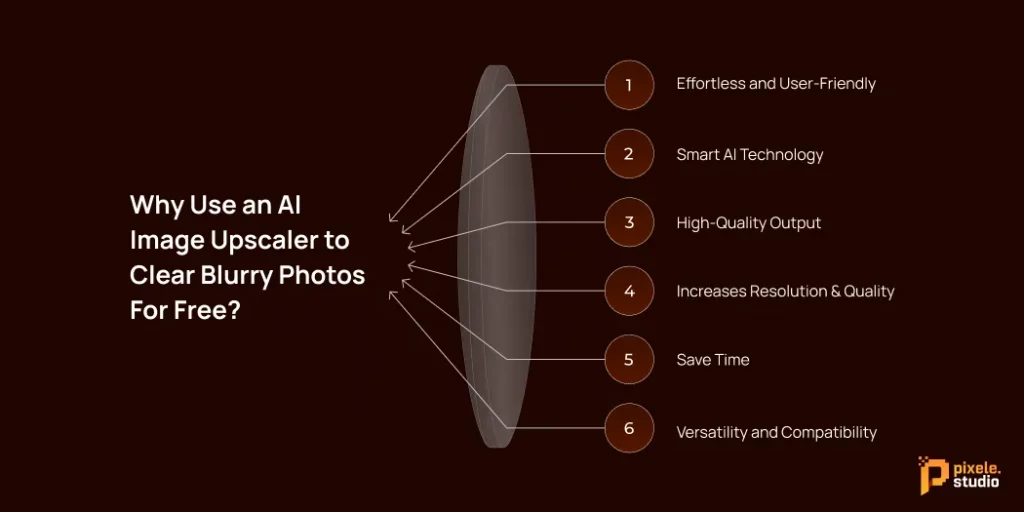
Clear images are more important than ever. But it’s not always easy to take the perfect shot, and we often end up with blurry photos. That’s where an AI image upscaler can help. Here are a few reasons why you should use an AI image upscaler to fix your blurry pictures for free.
Effortless and User-Friendly
AI image upscalers are incredibly easy to use. You don’t need any special photography or editing skills. Just upload your blurry picture, click a button, and the AI will automatically fix it for you. It’s a simple and quick process, making it great for everyone, from beginners to experts looking for fast results.
Smart AI Technology
AI image upscalers work by using advanced AI to scan your photo and find any blurry spots. The tool then intelligently fills in missing details, softens sharp edges, and sharpens the overall image for you.
Unlike older photo editing software that requires you to make changes by hand, the AI handles everything, saving you time and effort while giving you professional-looking photos.
High-Quality Output
One of the most important benefits of an AI image upscaler is that it delivers high-quality results. Even if your original photo is blurry or low-resolution, the AI enhances details, sharpens edges, and improves colors, giving you a clear and professional-looking image.
Increases Resolution & Quality
An AI image upscaler improves both the resolution and overall quality of your photo. It makes images sharper, more detailed, and clearer, so even small or low-quality pictures can look like high-definition photos.
Save Time
An AI image upscaler makes blurry photos clear in seconds. No need to learn complicated tools or edit manually; just upload your photo, click a button, and get a sharp image instantly.
Versatility and Compatibility
AI-powered tools are highly versatile and compatible with different file types and platforms. Whether you’re working with JPEGs, PNGs, or other popular image formats, these tools can handle them effortlessly, making it easy to enhance your photos regardless of their source.
Extra Tips to Prevent Blurry Photos in the Future
Fixing a blurry photo is helpful, but it’s even better to take clear photos from the start. Here are some simple tips to help you take sharper pictures:
- Check Your Lighting: Good lighting is very important for clear photos. Always try to take pictures in bright areas or natural light. Poor lighting can make your camera work harder and cause blur.
- Stabilize Your Camera: Camera movement is a common reason for blurry photos. Hold your phone or camera with both hands and keep it steady. If possible, rest your hands on a stable surface while taking the photo.
- Clean Your Lens: A dirty lens can make photos look soft or unclear. Before taking pictures, gently wipe the camera lens with a clean cloth to remove dust or fingerprints.
- Use Burst Mode: Burst mode takes several photos in a row. This is helpful when capturing moving subjects. You can later choose the sharpest image from the group.
- Proper Focusing: Always make sure your subject is in focus before clicking the photo. On smartphones, tap the screen where you want the focus to be. This helps the camera capture clear details.
Enhance your photos effortlessly with our AI image upscaler. Increase your high-resolution photo in seconds.
Conclusion
Don’t let blurry photos spoil your special memories. An AI image upscaler helps you turn unclear pictures into clear and sharp images with just a few clicks. It uses smart AI to improve photo quality quickly and easily.
The tool is simple to use, works online for free, and gives clear results in seconds. It supports many image types and works on different devices. Whether your photo is old, blurry, or low quality, an AI image upscaler helps make it clear and ready to use.
Frequently Asked Questions
Yes, you can fix blurry photos online for free using an AI image upscaler. You just need to upload your photo, and the AI will improve its clarity automatically.
It usually takes only a few seconds. After uploading your image, the AI quickly improves it and makes it ready to download.
No, you don’t need any editing skills. The tool is easy to use and works automatically with just one click.
It usually takes only a few seconds. After uploading your image, the AI quickly improves it and makes it ready to download.
Yes, most AI image upscalers work on mobile phones, tablets, and computers. You can use them directly in your web browser.
Shantilal Materiya is the Founder & CEO of Tagline Infotech, driving innovation in AI-powered software solutions and helping businesses embrace the future of digital transformation services.
Recent Blog

Canva Alternatives for Perfect Background Removal

Canva is a popular online design tool that offers a background removal feature for images. It allows users to remove the background from photos with just one click, making it useful for social media posts, presentations, marketing designs, and simple product images.
Canva is only available in its paid plans. Free users cannot access this feature, which is a common reason people look for alternatives. In some cases, Canva may struggle with fine details, such as hair, shadows, or objects with similar colors to the background.
Due to these limitations, many users search for Canva alternatives that offer background removal. Several online tools now offer one-click background removal, better edge accuracy, batch image processing, and even watermark-free downloads.
This blog showcases a list of the best Canva alternatives for perfect background removal. These tools help remove, change, or customize backgrounds while saving time and effort. Let’s explore them one by one.
Why Look for Canva Alternatives for Background Removal?
Canva is a great, user-friendly tool for graphic design, offering a wide range of templates. However, its background removal tool isn’t always the best option. Here are a few reasons why you might want to consider a Canva alternative:
- Cost: The main issue for many people is the cost. Canva’s background remover is only available for paid users. If you’re a casual user or a small business on a tight budget, paying a monthly fee just for this feature might not be worth it.
- Specialization: Canva is great for many things, but tools made just for background removal often do a better job. They use advanced AI to create cleaner cutouts, especially in tricky areas like hair or fur, where Canva might not be as precise.
- Speed and Workflow: Sometimes you just need to edit one image quickly without logging in, using a design dashboard, or exporting. Simple tools work better for quick, one-time tasks.
- Batch Processing: Editing 50 product photos one by one in Canva would take a long time. Many other tools let you edit multiple photos at once, which can save you hours.
Looking for a free Canva alternative? It’s not just about saving money; it’s about finding a tool that works better for your needs.
Best Canva Alternatives for Background Removal
1. Pixele Studio – Free AI Background Remover
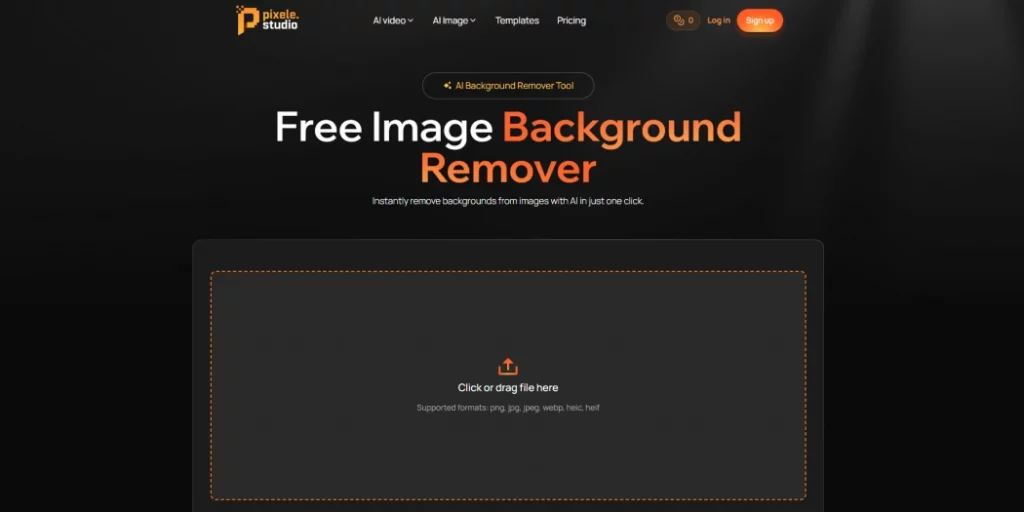
Product Description:
Pixele Studio is an easy-to-use online tool designed to remove image backgrounds with a single click. It’s perfect for anyone looking to create clean, professional images without having any design skills.
The tool works directly in your browser, so there’s no need to download or install anything. It’s especially for social media creators, online sellers, and marketers who need quick and reliable results.
Pixele Studio focuses on giving clean edges and clear cut-outs, even for images with people, products, or detailed objects.
Plus, users can download their edited images without watermarks, making it ideal for both personal and commercial use.
Key Features:
- Get high-quality, remove images in just one click
- No signup, no watermark, completely free
- Fast processing and easy downloads
- Works well for people and product photos
- Try the sample images for your work
- Supports all image formats
- Affordable solution
2. Remove.bg
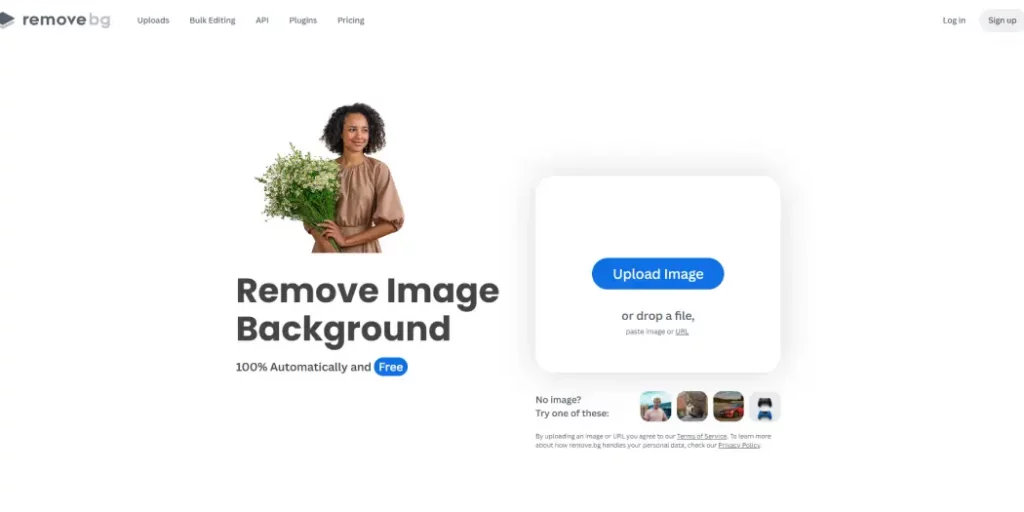
Product Description:
Remove.bg is a popular tool for removing backgrounds from images automatically. Users can upload a photo, and the background is removed in seconds.
It’s commonly used for profile pictures, product photos, and marketing materials. It also supports bulk editing to save time for those working with multiple images. High-quality downloads may require credits or a paid plan.
Key Features:
- Removes image backgrounds automatically with just one click
- API support for advanced users
- Minor manual adjustments if the AI misses a spot.
- Download images with a transparent background or add a new background color.
- Works with tools like Photoshop, Figma, and eCommerce platforms
- Easy drag-and-drop interface that works well for beginners
3. Adobe Express
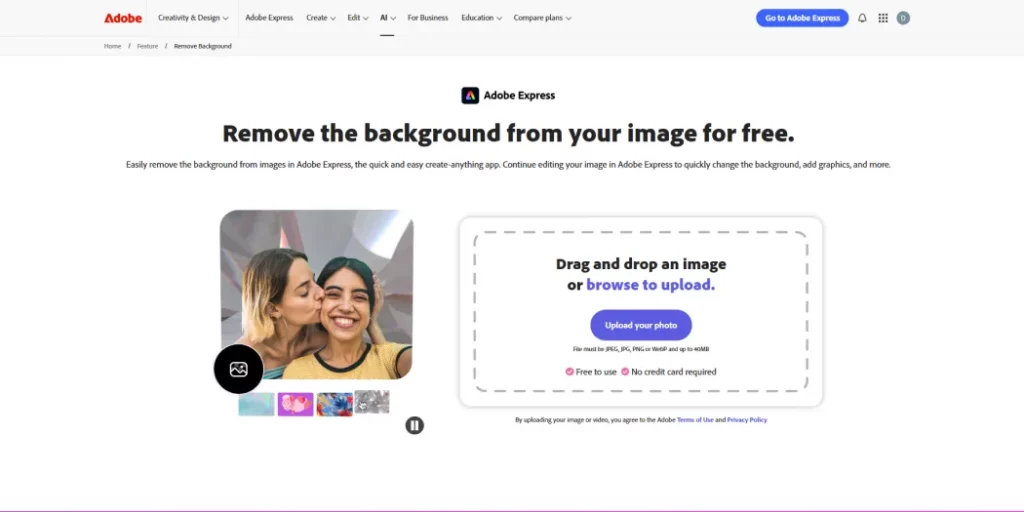
Product Description:
Adobe Photoshop is a well-known image editing tool used by designers, photographers, and content creators around the world.
Along with many editing options, it also offers a background removal feature that helps users separate objects or people from the background to create clean and professional images.
As a powerful design software, Adobe Photoshop gives users full control over image editing, layers, and background changes. It is a strong choice for those who want detailed editing and high-quality results.
While it may feel advanced for beginners, many users still consider it one of the most reliable options when exploring a Canva alternative free for background removal and image editing.
Key Features:
- Easily remove the background from images automatically
- Free to use anytime, anywhere, and no credit card required
- The new image will download as a PNG file
- Works well for desktop and mobile
4. Erase.bg
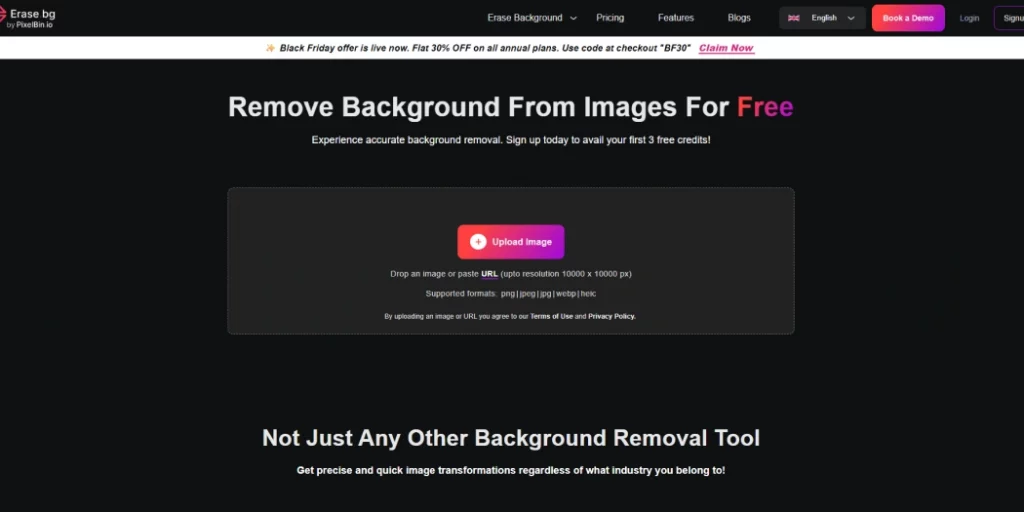
Product Description:
Erase.bg is a useful tool that makes removing backgrounds from images very easy. With its simple design and fast speed, anyone can get clear, professional-looking results quickly. This tool is a good choice if you want an alternative to remove.bg, offering similar features for easy background removal.
Erase.bg works on different devices and browsers, so it can be used anywhere. It removes backgrounds fast while keeping your image clear, making it one of the best simple tools for background editing.
Key Features:
- AI-powered automatic background removal
- Support for HD/4K resolution
- Customized colour and image options
- Extensive language support
- Supports common formats like JPG, PNG, WEBP, HEIC, with output in PNG for transparent backgrounds.
- API access for developers to use background removal in apps
5. PhotoRoom
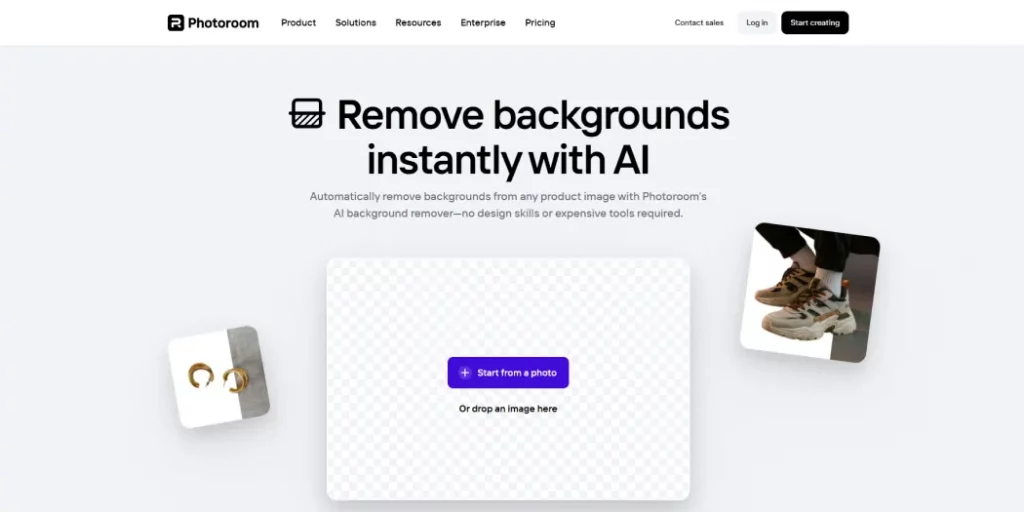
Product Description:
PhotoRoom is an online tool that makes it easy to remove the background from any photo. You just upload your image, and the background is removed automatically, leaving a clean subject.
After that, you can keep it transparent or replace it with a new background, color, or template. The tool also lets you add text or simple designs to make your images look professional. PhotoRoom works on both computers and phones, and you can start using it for free.
Key Features:
- Removes the background from your photos automatically
- Can remove unwanted parts or objects from the background if needed.
- Save time and money
- Offers ready‑made templates for social media and product photos.
6. Fotor
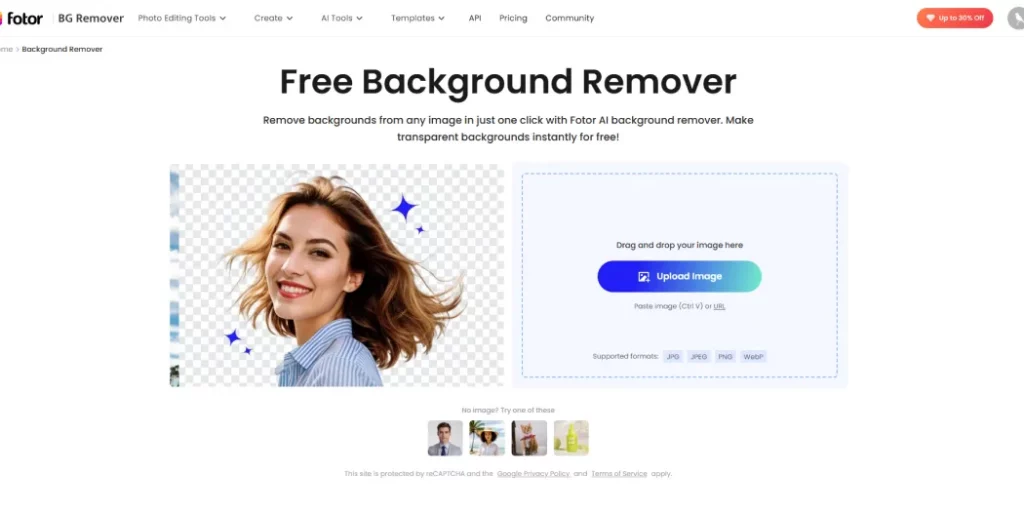
Product Description:
Fotor is an online image editing tool that makes it easy to remove backgrounds from photos. Its simple and clean interface allows anyone to edit images quickly without any complicated steps.
Besides background removal, Fotor offers a variety of editing tools and templates to enhance your images. This makes it a great choice for both beginners and experienced users who want a simple yet powerful platform.
With Fotor, you can create professional-looking images easily, making it a strong alternative to remove.bg for background editing and photo enhancement.
Key Features:
- Remove backgrounds from any image in just one click
- Supports batch background removal (up to 50 images at once) to save time
- Includes a magic brush tool to manually refine or fix parts
- Transparent backgrounds instantly for free
- Allows background blur to highlight the main subject.
- Works with common image formats like JPG, JPEG, PNG, and WebP
7. Pixelcut
Product Description:
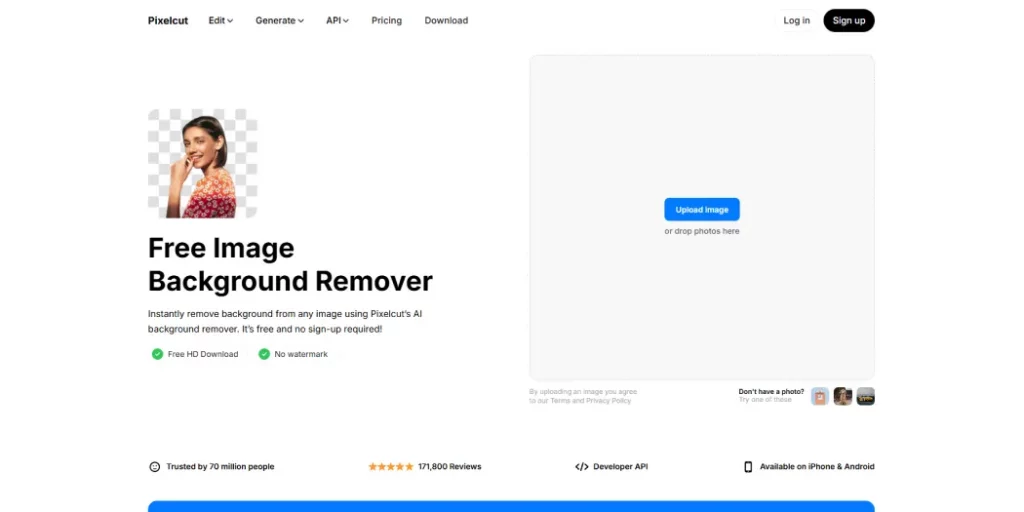
Pixelcut is an online background remover tool that cleans up your photos in seconds. Just upload your image and the tool will automatically remove the background for you.
From there, you can leave the background transparent or add a new color or image. Pixelcut works on desktop and mobile, so it’s easy for anyone to edit photos without complicated software. You can even process multiple images at once, which is a great time-saver.
Its simple and fast editing features make Pixelcut one of the best free Canva alternatives for creating product photos, social media content, and other professional-looking designs.
Key Features:
- Removes backgrounds quickly, even for detailed areas like hair.
- Offers one-click removal plus a brush to fix edges or leftovers.
- Lets you replace the background with colors, gradients, or templates.
- Designed for product photos, with shadows and templates for eCommerce.
- Works with other tools like Magic Eraser, AI Photo Shoot, and video creation.
- Supports batch editing to handle many images at once (Pro feature).
- It can be used online without installing heavy software.
Why Can Pixele Studio Be the Best Alternative to Canva?
Pixele Studio is a fast and easy online tool that makes background removal simple for everyone. You can remove backgrounds with just one click, and the tool keeps your images clear and professional.
Unlike Canva, Pixele Studio is free to use and does not add a watermark, making it perfect for personal and business projects.
In addition to background removal, Pixele Studio offers editing features like adding new backgrounds, colors, or templates, so you can create product photos, social media posts, banners, and more. Its simple interface works on both computers and mobile devices, making it accessible anywhere.
Pixele Studio is one of the best free alternatives to Canva for creating clean and professional images.
Frequently Asked Questions
Some of the best free alternatives include Pixele Studio, Remove.bg, Erase.bg, Fotor, PhotoRoom, and Pixelcut. These tools allow quick background removal without watermarks.
Yes, many tools like Pixele Studio, Erase.bg, and PhotoRoom offer free background removal without requiring a paid plan.
PhotoRoom and Pixelcut are ideal for product images as they offer shadows, templates, and eCommerce-focused features.
Yes, tools like Remove.bg, Pixelcut, and Fotor support batch or bulk background removal to save time.
Most alternatives, including Pixele Studio, PhotoRoom, and Pixelcut, work on both mobile devices and desktop browsers.
Yes, most tools allow you to replace backgrounds with solid colors, gradients, or custom images after removing the original background.
Yes, all the mentioned Canva alternatives are beginner-friendly and require no design experience to remove or edit backgrounds.
Remove.bg, Pixele Studio, and Adobe Express are known for maintaining high-resolution images after background removal.

Krishna Dudhat is an SEO Content Writer at Tagline Infotech, creating AI-optimized content that drives visibility, engagement, and digital growth.
Recent Blog
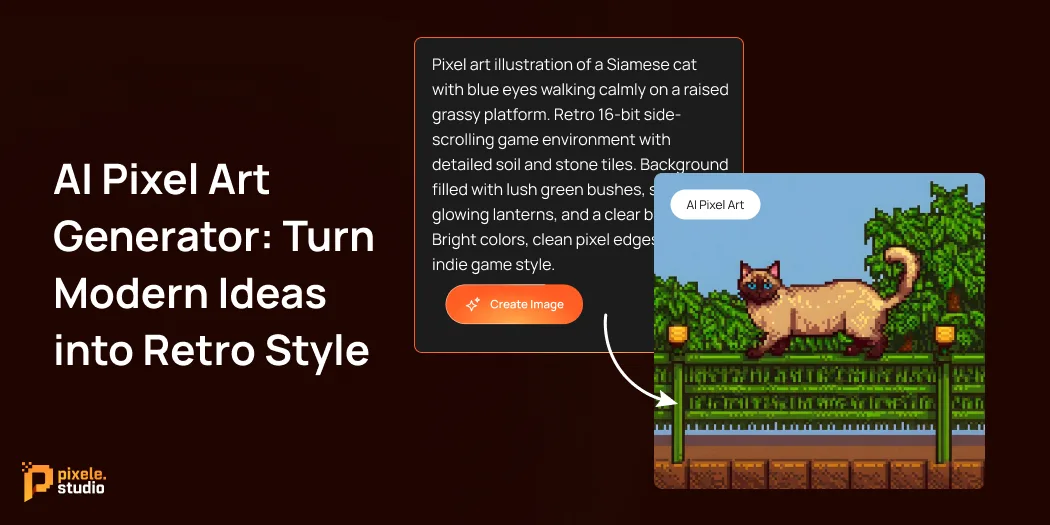
AI Pixel Art Generator: Turn Modern Ideas into Retro Style

Remember the charm of old-school video games with their blocky characters and simple backgrounds? That nostalgic style is making a comeback, and now you can recreate it without the hassle of placing each square by hand.
Today, technology makes it simple to create an 8-bit or 16-bit look. An AI pixel art generator turns your ideas into retro-style art. Just type in your words, and it quickly creates digital pixel designs.
Whether you’re making a game, creating social media posts, or just having fun, these tools save you lots of time. You don’t need to be an artist or know how to use complicated software.
In this guide, we will explain what a pixel art generator is, its main features, how to create a pixel art image, and why Pixele Studio has become a favorite tool.
What Is an AI Pixel Art Generator?
An AI pixel art generator is a software tool that utilizes artificial intelligence (AI) to generate pixel art images with a single click.
Pixel art is a type of digital art made up of small square blocks called pixels. It creates a retro, 8-bit style often seen in old video games, giving it a fun, nostalgic look.
Traditionally, creating pixel art used to take a lot of time since artists had to place each pixel one by one. But now, AI pixel art generators make the process quick and simple. These tools can instantly transform your ideas, text descriptions, or regular images into pixel art.
Key Features of an AI Pixel Art Generator

1. Text to Pixel Art Generation in One Click
An AI pixel art generator can create a pixel art image in just seconds using text prompts.
For example:
Prompt: “cute cat in pixel art style” – The AI instantly creates a small, colorful cat in retro pixel design.
This feature is great for anyone, whether you’re a beginner or a seasoned designer. It allows you to quickly create high-quality pixel art from your ideas, no technical skills needed.
2. No Watermark Option
If you want to use your pixel art for professional work, like in a video game or on a website, you need clean images. Watermarks can distract from the art and make it look less professional.
AI-generated pixel art usually gives you the option to download your images without a watermark. This ensures your final product looks polished and ready to use.
3. Custom Pixel Size Option
Our AI pixel art generator lets you pick the pixel size and create images in different shapes and sizes. Choose from square, portrait, or landscape layouts to fit your project.
4. Fast Generation Workflow
Making pixel art by hand can take a lot of time, but a Pixel art AI generator can create it in just seconds.
This tool is great for designers, game developers, or anyone who wants to try out different styles and ideas quickly and easily.
5. Retro Style Outputs
The AI needs to understand the style. It’s not just about creating a blurry image; it’s about using sharp edges and specific color choices.
The best tools are trained to work with retro art styles. They know how to use a few colors to create depth and shadows effectively.
6. User-Friendly Interface
The software should be easy to use without needing a manual. A good tool has a clean, intuitive interface that makes sense to both beginners and professionals.
Clear buttons and simple text boxes ensure a smooth creative process for everyone.
Create a Retro-Style Image with an AI Pixel Art Generator
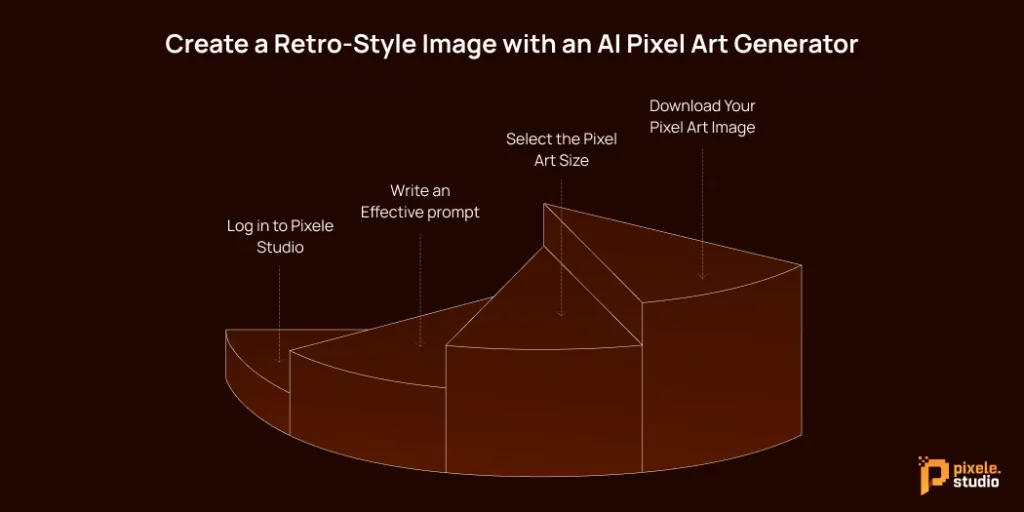
Ready to generate AI pixel art? We’ll walk you through the process using Pixele Studio as an example to show you just how easy it is.
Step 1: Log in to Pixele Studio
Go to the Pixele Studio website and sign in to use the generator features.
If you don’t have an account, creating one is quick and easy. Once you’re logged in, you’ll go straight to the main workspace.
Step 2: Write an Effective prompt
The AI generates pixel art based on your text description. Write a clear and creative prompt to get the best results.
Examples of effective prompts:
- “Cute cat in pixel art style”
- “Retro spaceship flying in space.”
- “Pixel art fantasy forest scene”
The AI will instantly transform your description into a detailed, colorful pixel art image.
Step 3: Select the Pixel Art Size
Choose the pixel size and layout for your image. Pixele Studio lets you pick square, portrait, or landscape formats depending on your project needs. Adjusting the size ensures your pixel art fits perfectly for games, websites, or social media.
Step 4: Download Your Pixel Art Image
Click “Generate” to let the AI create your pixel art image. In a few seconds, your pixel art will appear. Just click “Download” to save it to your device and use it anywhere!
Who Should Use an AI Pixel Art Generator?
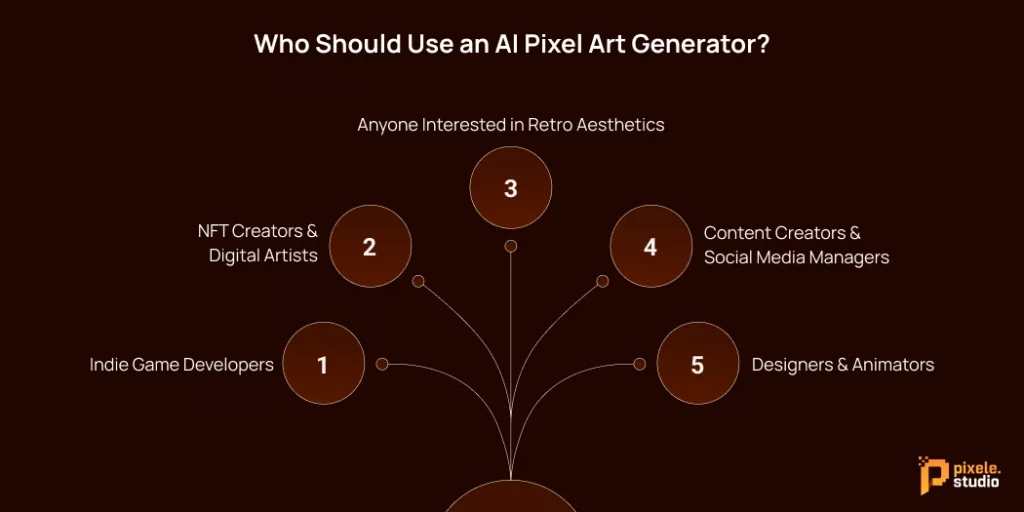
You might think AI pixel art generators are just for game designers, but many different people can benefit from them. Here’s who finds them most useful.
1. Indie Game Developers
Art can be a major roadblock for small teams or individual game developers. Hiring artists costs a lot of money and can slow down the development process.
By using an AI tool, developers can create art assets like characters, items, and backgrounds quickly without spending too much money.
2. NFT Creators & Digital Artists
The digital art market values unique styles, and pixel art is a popular choice for digital collectibles.
Artists can use AI to come up with new ideas or create the initial layers of their artwork. This speeds up their creative process, helping them create entire collections more quickly.
3. Anyone Interested in Retro Aesthetics
Maybe you just love the 90s vibe. You don’t need a reason to create art. Many people use these generators just for fun; it’s exciting to see your ideas turn into retro pictures right away.
4. Content Creators & Social Media Managers
Content creators and social media managers can use these tools to make unique pixel art for their posts, stories, and ads. The AI helps them keep a consistent retro look across all their social media channels, saving time and energy.
5. Designers & Animators
Graphic designers can use AI tools to create placeholders or mood boards quickly. Animators can use them to design character sheets or plan scenes, making it easier to see the project before creating the final drawings.
How to Choose the Best AI Pixel Art Generator
With so many tools available, choosing the right one can be tricky. Here’s what you should consider to make the best choice.
1. Quality of the output: The most important thing is the quality of the pixel art. A good AI generator should create clear, detailed, and attractive images that look like classic 8-bit style.
2. Consider the Cost: AI pixel art generators can be free, require a subscription, or charge per use. Pick one that works for your budget and has the features you need.
3. Check the features: Always check if the tool offers new and smart features. These features make creating pixel art easier and faster.
4. Consider versatility: A good AI pixel art generator should be able to create art for various projects, like games, social media posts, NFTs, or animations. Tools that offer different styles, sizes, and formats are more flexible and save you from juggling multiple platforms.
Why Pixele Studio Is Perfect for Retro Pixel Art Creation
If you’re looking for an easy-to-use tool, Pixele Studio is a great pick. It’s made for people who love retro pixel art.
It’s fast, produces high-quality results, and the AI gets pixel art right—no strange or messy pixels. The simple interface makes it easy to start right away. You can even choose your grid size, so you have full control over your design.
Whether you’re creating a game or just playing around, Pixele Studio makes it easy to focus on your creativity without worrying about the technical stuff.
Add a retro touch to your images with our pixel art generator. Create fun pixel designs from text instantly.
Conclusion
An AI pixel art generator makes it quick and easy to create retro-style pixel art. Whether you’re a game developer, designer, or just a fan of pixel art, the right tool helps you turn ideas into visuals in seconds. With features like smart design options, flexible sizes, and clean results, you can create pixel art hassle-free for any project.
Ready to create pixel art the easy way? Try a reliable AI pixel art generator like Pixele Studio today and start designing stunning retro-style images in just a few clicks.
Frequently Asked Questions
An AI pixel art generator is an online tool that uses artificial intelligence to create pixel-style images from text prompts or regular images.
Yes, AI pixel art generators are beginner-friendly. You don’t need any design or coding skills; just enter a prompt, select the size, and the AI creates the pixel art for you.
Most AI pixel art generators allow commercial use, especially when they offer a no-watermark option. Always check the tool’s license or terms before using images for business purposes.
Yes, many tools let you choose custom sizes such as square, portrait, or landscape. This helps create pixel art suitable for games, social media, websites, or NFTs.
Pixel art is usually generated within seconds. AI tools are designed to provide fast results while maintaining good image quality.
Some tools add watermarks, but many modern AI pixel art generators offer a no-watermark option so you can download clean, professional images.
You can create various styles such as retro 8-bit art, game characters, icons, objects, and simple scenes using an AI pixel art generator.

Rakesh Mahale is the SEO Team Lead at Tagline Infotech, specializing in AI-driven SEO strategies that boost organically digital visibility and business growth.
Recent Blog
Free AI Photo Colorizer: Bring B&W Photos Back to Life

Looking to add color to your old black and white photos? Many people have old pictures that hold special memories but feel dull without color. Adding colors can make these photos look fresh, real, and full of life again.
Now, AI photo colorizers have made it simple. Simply upload your photo, and the tool automatically adds natural-looking colors in one click.
This guide will break down the eight best free AI photo colorizers to help you colorize your black-and-white photos effortlessly.
8 Best Free AI Photo Colorizers to Colorize Black and White Photos
We have listed the 8 best free photo colorizers that help turn black and white photos into natural and realistic color images.
- Pixele Studio
- YouCam
- Imagecolorizer
- Palette
- DeepAI
- Pixelbin
- VanceAI
- Fotor
1. Pixele Studio – Free Online AI Photo Colorizer
Pixele Studio is a free AI photo colorizer allowing you to quickly add color to your black-and-white images. It is designed to be user-friendly, meaning you don’t need any technical skills to get a great result.
Using Pixele Studio is very easy. Just upload your black and white photo, wait a few seconds, and see it turn into a colored image. The colors look soft and natural, making old photos feel more real and lively. It works well for family pictures, childhood photos, and old memories.
If you want a simple and free way to bring your black and white photos back to life, Pixele Studio is a good option. It saves time, is easy to use, and helps you enjoy your old photos in a new way.
Key Features:
- One-Click Colorization: Simply upload a black and white photo and get a colored version very fast. The tool adds natural colors automatically.
- Natural and Real-Looking Colors: The colors look soft and real, not fake or too bright, so your old photos feel like real-life pictures.
- Supports Popular Photo Files: You can upload common photo types such as PNG, JPG, JPEG, WebP, HEIC, and more.
- Perfect for Family Memories and Vintage Pictures: It is great for restoring old family photos, history images, or any black and white pictures you want to remember in color.
- Very Easy to Use: No need for any editing skills. Just upload your photo and click the colorize button, that’s it!
- Keeps Photo Quality: Your photo stays clear and sharp after adding color. Only colors are added, so the image does not look blurry or low quality.
2. YouCam
YouCam is an AI colorize photo free online that brings your old black and white photos back to life with bright and natural colors. It enhances photo quality and adds realistic colors, making every image look fresh and lively in just a few clicks.
Key Features:
- Free Online Colorizing: You can color black and white or old photos directly online without downloading any software. No editing skills are needed.
- Childhood Photo Support: Bring your childhood memories back to life in color! Whether it’s a family portrait, a school photo, or a fun moment with friends, YouCam Photo Colorizer can add natural colors to your old black and white pictures.
- Easy One-Click Colorization: With a single click, the tool adds color to your photo automatically. No editing skills required.
- Colorize Old Photos of Celebrities or Historical Images: Turn old b&w pictures of famous people or historic moments into colorful, real-looking images. It makes the photos feel alive and more memorable.
3. Imagecolorizer
Meet ImageColorizer, a free online tool that makes adding black and white photos to color AI simple and fast.
With its smart features, ImageColorizer can turn black and white or old, faded photos into bright and natural-looking pictures. Whether you want to restore family memories or make your old photos more lively, ImageColorizer helps you get clear, colorful results in just a few clicks.
Key Features:
- AI Colorization: Automatically adds realistic and natural colors to black-and-white or faded photos using AI algorithms trained on millions of images.
- Photo Enhancement: Fixes blurry, low-quality, or pixelated images by sharpening details, enhancing clarity, and improving brightness and contrast to create high-definition results.
- Portrait Retouching: Improves faces in photos by smoothing skin and sharpening details. The photo still looks natural and not over-edited.
- Damage Repair: Fixes old photo problems like scratches, tears, spots, and marks. Helps restore damaged photos and makes them look clean again.
- Customization: Allows simple changes to colors and photo look so the final image matches personal preference.
- Accessibility: Works online on different devices and can also be used through desktop or mobile apps, making it easy to access anytime.
4. Palette
Palette.fm is a free online photo colorizer that brings old black and white pictures to life with color. The tool is quick and simple to use. Users can upload a photo and choose from many color styles to make the image bright and natural in seconds.
With over 21 color filters and options to adjust the look, Palette.fm refreshes old photos without requiring any editing skills. This makes it ideal for restoring family memories, vintage portraits, or historic photos with vibrant and realistic colors.
Key Features:
- Easy Photo Colorizing: Palette.fm makes colorizing photos easy. Just upload a black and white photo, and the tool quickly adds color without any complicated steps. You don’t need any editing skills.
- More Than 21 Color Filters: Palette.fm offers more than 21 color styles to choose from. These filters help change the mood and look of the photo, so each image can feel unique and personal.
- User-Friendly Interface: The tool is straightforward and user-friendly. Everything is presented clearly. This makes it easy for beginners to upload photos, apply colors, and download their results without any confusion.
- Customization: Palette.fm lets you make small changes to colors and styles. This helps refine the photo, making it look more like how it would have appeared in real life.
- High-Quality Output: The final photos have clear detail and sharpness. The colors are smooth and natural, which makes the images ideal for sharing, saving, or printing.
5. DeepAI
DeepAI is an online platform that makes it easy to create and edit images. One of its helpful benefits of photo colorizing, it allows users to use an AI photo colorizer free, adding natural colors to old black and white or faded photos. With just a few clicks, images become brighter, clearer, and more lively. This makes DeepAI a great option for refreshing old memories and giving photos a fresh look without complicated steps.
Key Features:
- Automatic AI Colorization: DeepAI automatically adds color to black and white or faded photos. The colors look natural and help images feel more real and lively without manual work.
- Web-Based Platform: DeepAI works directly in a web browser. There is no need to download or install any software, making it easy to use on any device.
- Simple Interface: The platform is clean and easy to understand. Photos can be uploaded, processed, and downloaded without confusion, even for first-time users.
- API Integration: DeepAI offers an API that developers can use to add photo colorizing and image tools into their own apps or websites.
- High Accuracy: The tool applies colors carefully so faces, objects, and backgrounds look balanced and realistic, not overdone or fake.
6. Pixelbin
Pixelbin is an online tool that helps colorize photos online with free AI, adding natural colors to old black and white photos quickly and easily. It is simple to use and works directly in the browser, so there is no need to download any software. Just upload a photo, and the tool brings it to life with vibrant and realistic colors in a few seconds.
The photo stays clear and clean after coloring. The final image can be saved in good quality and shared easily. Pixelbin also keeps photos safe while editing, making it a simple and quick option to bring old pictures back to life.
Key Features:
- Automatic Colorization: Adds color to black and white photos automatically. The colors look soft and natural, helping old photos feel fresh and real.
- Restoration Capabilities: Helps improve old or damaged photos by fixing faded areas and making images look clearer and cleaner.
- User-Friendly Interface: The AI Colorizer tool is easy to use and simple to understand. Photos can be uploaded and colored in just a few steps.
- Privacy and Security: Photos are kept safe while being processed. Images are not shared and remain private during editing.
- High-Resolution Output: The final photo stays clear and sharp after coloring, making it suitable for saving, sharing, or printing.
7. VanceAI
VanceAI is an AI photo colorizer online free that helps add color to old black and white photos simply and quickly. It is made for everyday users, so no photo editing skills or software downloads are needed. Everything works directly in the browser, making the process easy from start to finish.
With VanceAI, old photos can look fresh and lively again. The tool adds natural-looking colors while keeping the photo clear and sharp. It is useful for restoring family photos, vintage portraits, and old memories that need a new touch of color.
Key Features:
- Automatic Colorization: Adds color to black and white photos on its own. The colors look soft and real, helping old photos feel fresh again.
- Photo Enhancement and Restoration: Improves old or low-quality photos by making them clearer and cleaner. Faded areas and small issues are fixed to give photos a better look.
- Batch Processing: Allows more than one photo to be processed at the same time. This saves time when working with many images together.
- Customization Options: Provides simple settings to adjust colors and photo appearance. This helps get results that match personal preference.
- Online Accessibility / API Access: Works online in a web browser, so no software download is needed. API access is also available for adding the tool to apps or websites.
- High Accuracy and Natural Results: Photos look balanced and realistic after processing. Faces, backgrounds, and details stay natural and not overdone.
8. Fotor
Fotor is a popular online photo editing platform that offers many tools to improve and enhance images. Its photo colorizer can turn black and white photos into bright and natural-looking pictures. This makes old family photos, vintage portraits, and other black-and-white images look fresh and lively.
Fotor is easy to use for both beginners and experienced users, providing great results in just a few clicks.
Key Features:
- Automatic Colorizing: Adds natural colors to black and white photos automatically. Makes old pictures look fresh and lively with just a few clicks.
- Photo Restoration: Fixes old or damaged photos by removing scratches, faded areas, and marks, restoring them to a clear and clean state.
- Image Quality Improvement: Enhances clarity, sharpness, and brightness of photos so images look high-quality and detailed after coloring.
- Cross-Platform Access: Works on computers, tablets, and smartphones through a web browser, making it easy to use anywhere without installing software.
- Enhanced Realism: Colors are applied carefully to make photos look balanced and natural. Faces, backgrounds, and objects appear realistic and vibrant.
Conclusion
Ready to turn old black and white photos into colorful, lively images? The best free AI photo colorizers make it easy to restore and refresh old memories in just a few clicks. Bring family photos, vintage portraits, and historic pictures back to life with natural, realistic colors and enjoy stunning results instantly.
Frequently Asked Questions
A photo colorizer is an online tool that adds natural colors to black and white or faded photos, making them look fresh and lively.
No. These tools work directly in a web browser, so there is no need to download or install any software.
The best photo colorizers in 2025 are Pixele Studio, YouCam, ImageColorizer, Palette, VanceAI, Pixelbin, and Fotor, offering easy online colorizing with natural, realistic results.
Simply upload a black and white photo, and the tool automatically applies colors. Some tools also improve photo clarity and fix minor damage.
Yes! Free photo colorizers are perfect for restoring old family photos, childhood pictures, or vintage portraits, giving them a fresh and natural look.
Yes. Free photo colorizers maintain the clarity and details of your photos while adding natural colors, making them suitable for printing or sharing online.
Bipin Sakariya is the Co-Founder & CTO of Tagline Infotech, leading AI-driven technology initiatives and building future-ready digital solutions for global businesses.
Recent Blog
AI Painting Generator From Text: A Complete Guide

Just imagine typing some words and watching them transform into a beautiful painting in a few seconds. No art skills, no brush, and no canvas. Now, AI painting generators can do it easily.
Previously, creating a painting could take years. Today, AI has changed all that. With this smart technology, anyone can create beautiful artwork simply by describing an idea in words.
Whether you envision a calm nature scene, a vibrant abstract design, or a lifelike portrait, AI can turn your thoughts into a visual masterpiece.
Curious about AI painting but don’t know how to start? This guide is made just for you.
In this blog, we will discuss what an AI painting generator is, how it works, and how you can use an AI painting generator from text step by step, and also useful features to get better results.
What Is an AI Painting Generator?
Simply, an AI painting generator is an artificial intelligence tool that creates paintings from your ideas.
These tools are trained on a large collection of art styles, colors, and visual patterns. This training helps the AI understand what makes a good painting, so it can create new artwork that looks balanced and artistic.
The main purpose of an AI painting generator is to make art simple and accessible. You don’t need technical knowledge, special software, or artistic experience.
How Does an AI Painting Generator Work?
An AI painting generator works by using deep learning and advanced AI models. It is trained on a large collection of images and text, so it can understand patterns, colors, and styles in art.
When you give a text prompt, the AI uses this knowledge to create a new painting that matches your description. It starts from random patterns and transforms them into a complete image.
Most AI painting generators use techniques like Generative Adversarial Networks (GANs) or Diffusion Models. These methods help the AI learn how to combine shapes, colors, and styles to produce unique and realistic artwork.
Key Features of an AI Painting Generator from Text
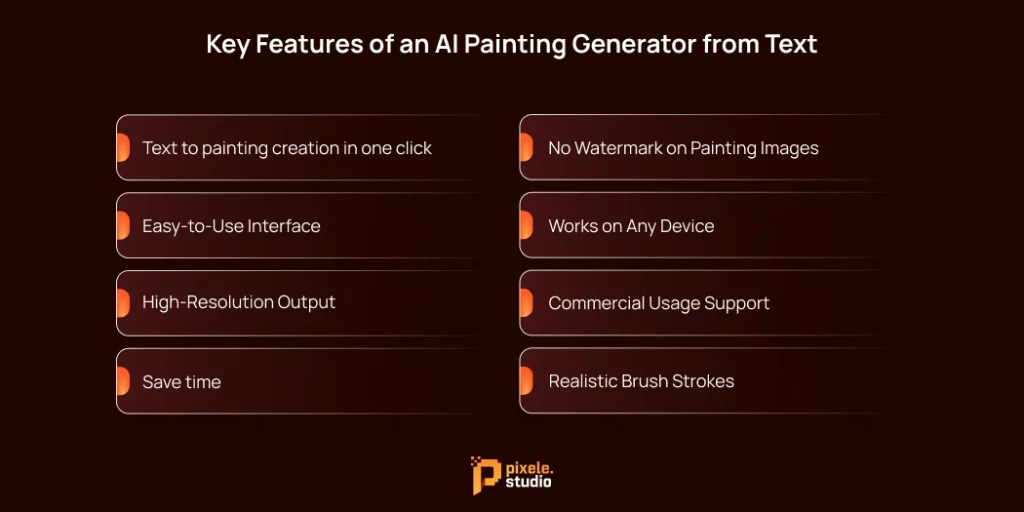
If you’re searching for the best AI painting generator, there are a few key things to keep in mind.
With so many tools available, choosing the right one can feel confusing. Some tools are just for fun, while others are packed with professional features. Here’s what makes the great ones stand out from the rest.
1. Text to painting creation in one click
Our AI Painting Generator can turn your ideas into realistic paintings in just a few clicks. It transforms your words into visual art quickly, making it easy for anyone to create beautiful paintings without any special skills.
2. Easy-to-Use Interface
A good AI painting generator should be simple to use. You shouldn’t have to search for the text box or the download button.
The best tools have a clean, simple design that lets you create without getting frustrated by complicated menus or hidden features.
A good user experience means you can focus on your art, not on figuring out the software.
3. High-Resolution Output
If you want to use your AI-generated painting for a small social media post or any work, resolution is more important.
Our AI painting generator from text creates clear and detailed paintings. Every image looks sharp and neat, so you can use it for printing, social media, or any project without worrying about poor quality.
Some even have upscaling technology, which makes smaller images bigger and sharper without losing quality.
4. Save time
Speed is one of the main advantages of using AI. While a human artist might take days or even weeks to paint something, an AI can create a similar image in under a minute.
But not all AI painting generators are fast. Some put you in a line or take several minutes to create your image.
The best tools work quickly, letting you try out different ideas without having to wait. This fast process helps you improve your creations in less time.
5. No Watermark on Painting Images
Our AI Painting Generator lets you download paintings without any watermark. This means your artwork is clean and ready to use for personal projects, social media, or professional purposes without any distractions.
6. Works on Any Device
A good AI painting generator works smoothly on all devices, including computers, tablets, and smartphones. This allows users to create paintings anytime and anywhere without needing special software or powerful hardware.
7. Commercial Usage Support
A good AI painting generator allows paintings to be used for business or commercial purposes. This means you can incorporate the designs into marketing materials, social media posts, projects, or products without concerns about copyright restrictions.
8. Realistic Brush Strokes
When it comes to painting, texture is really important. You don’t want the artwork to look flat, like a digital photo. You want to see the roughness of the canvas, the thickness of oil paint, or the way watercolor spreads.
Advanced tools are great at copying these details. They can make digital art look just like it was created by hand.
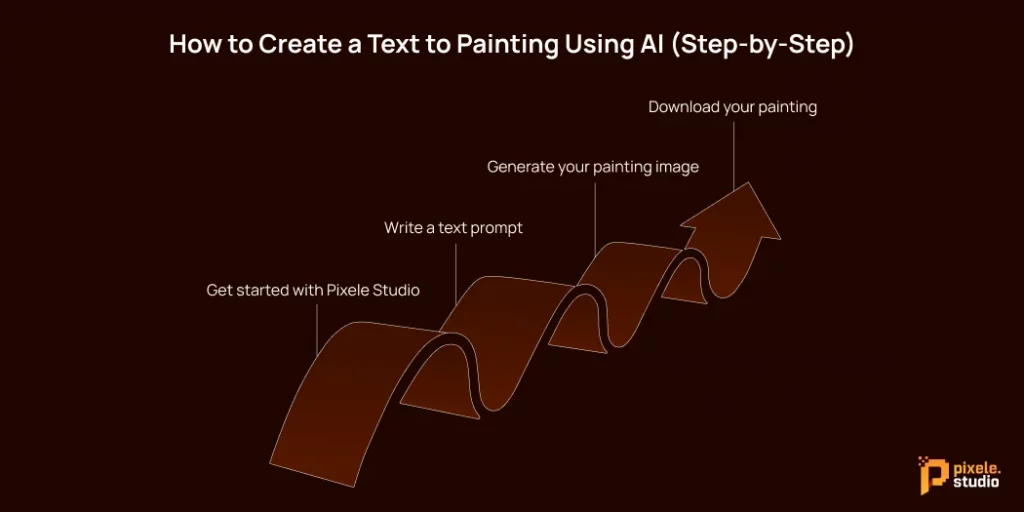
How to Create a Text to Painting Using AI (Step-by-Step)
1. Get started with Pixele Studio
First, go to Pixele Studio and sign in to your account. If you don’t have an account, you can sign up for free. After signing in, select the AI image generator option from the top menu. This will open a workspace where you can type your ideas and generate your artwork.
Pixele Studio gives you a set number of generative credits to start creating, so you can explore and make your first paintings easily.
2. Write a text prompt
This is the most important part. Be descriptive.
Now, type a description of the painting you want to create. Be clear about what you want to see, like the subject, colors, or mood.
3. Generate your painting image
After writing your prompt, click the Generate button. In just a few seconds, the AI will create your painting based on your description.
Once your painting is ready, you can experiment by changing the Content Type to Art or Graphic. This will give your painting a more artistic or painterly style.
4. Download your painting
When your painting is ready and you’re happy with it, click the Download button at the top of the image. This will save your artwork to your device, so you can use or share it anytime.
Who Can Use the AI Painting Generator?
Here’s a breakdown of who can benefit most:
1. Professional Artists and Designers
Professional artists and designers can use AI painting generators to get new ideas, speed up their workflow, and experiment with different styles. It helps them save time and explore creative possibilities they might not have thought of before.
2. Content creators and bloggers
These tools are perfect for content creators and bloggers who need eye-catching images for their articles, websites, or videos. Instead of hiring a designer, they can use AI painting generators to create custom visuals that perfectly match their content.
3. Social media users
Social media users can easily create eye-catching and creative images for their posts, stories, or profiles. With AI painting generators, it’s never been easier to stand out with unique visuals.
4. Hobbyists and Amateurs
Anyone can enjoy painting, even without artistic skills. Hobbyists and beginners can explore, learn, and have fun with the creative process; no years of practice required.
5. Students and educators
Students and teachers can use AI painting tools for projects, presentations, or classroom activities. It’s a fun way to be creative and learn about art, colors, and design.
Are AI-Generated Paintings Safe to Use?
This is a complex topic. Since the technology is still relatively new, the legal framework is trying to catch up.
If you’re using a reputable AI image generator, the platform typically grants you usage rights. However, in most cases, you can’t copyright an AI-generated image.
According to the US Copyright Office, works created by non-humans aren’t eligible for copyright protection. So, while you can use the image, you may not be able to prevent others from using it too.
Another issue is the data used to train these AI models. Many artists are concerned that their work has been used without permission to train AI systems.
For personal use, AI images are generally safe to use. But for major commercial projects, it’s essential to review the terms of service of the platform you’re using to avoid any legal complications.
You don’t need brushes or art skills. Just tap once and turn your ideas into beautiful AI paintings.
Conclusion
An AI painting generator from text makes creating art easier and more accessible than ever. Whether you are a professional artist, a content creator, or someone who enjoys exploring creativity, this tool allows you to turn simple text into stunning, realistic paintings in seconds.
Are you looking for an AI painting generator free of charge? Start creating your own Pixele Studio AI paintings today!
Frequently Asked Questions
An AI painting generator from text is a tool that creates paintings from written descriptions. You type your idea, and the AI turns it into a unique, visual artwork automatically.
Yes, modern AI painting generators can produce highly realistic paintings with detailed brush strokes, colors, and textures.
Yes, some platforms like Pixele Studio offer free access to AI painting generators. You can create stunning artworks without paying, though some features may require credits or paid plans.
Many AI painting tools allow commercial use, but it depends on the platform. Always check the terms before using the images for business, marketing, or selling.
Write clear and specific prompts. Mention the subject, colors, mood, and style you want. Experiment with different descriptions to get the best results.
Yes! These tools are designed for everyone. You don’t need any art or drawing skills to create amazing paintings with just a few clicks.
Shantilal Materiya is the Founder & CEO of Tagline Infotech, driving innovation in AI-powered software solutions and helping businesses embrace the future of digital transformation services.
Recent Blog
How to Turn a Photo into a Drawing Using Photo to Sketch

Transforming a photo into a drawing is a popular way to give your pictures a fresh, creative twist. Artists are always looking for new methods to bring their images to life, and turning a simple picture into something that looks hand-drawn offers a special kind of satisfaction.
Whether you want a simple pencil sketch, a clean outline, or a detailed drawing, this style makes any photo look special. It’s great for social media, gifts, profile pictures, or even wall art. The best part? It’s super easy, no drawing skills or tricky steps required!
In this guide, we’ll show you how to turn a photo into a drawing using a simple Photo to Sketch method. We’ll also share tips to help you get clear, natural, and professional-looking sketches every time.
First, What is Photo to Sketch?
Photo to Sketch is an artificial intelligence tool that turns your photos into drawings in just a few clicks. It utilizes smart technology to analyze the lines, shapes, and shadows in your picture and transforms them into digital sketches that resemble those created with a pencil or ink.
It works for all types of images, including portraits, pets, landscapes, and objects. With Photo to Sketch, ordinary photos are transformed into creative, hand-drawn style pictures that look clean and professional.
Why turn a photo into a drawing?
Turning a photo into a drawing is an interesting process that changes the image from a new perspective. A sketch-style image can give a photo an artistic and unique touch. This idea is popular among those who enjoy art or want to make their photos stand out.
There are key reasons why creating a drawing from a photo is useful and enjoyable:
- Artistic Appeal: Sketch-style images have a timeless and elegant appearance. A photo turned into a pencil drawing, or outline, can look more creative and visually engaging. Even basic photos of everyday objects can resemble professional artwork.
- Personalized Gifts: Hand-drawn style images make great personal gifts. Sketches of family members, pets, or friends can be meaningful presents for birthdays, anniversaries, or special occasions.
- Social Media and Profiles: In a world filled with photos, a drawing catches the eye. Sketch-style images draw interest on social media, making profile pictures, posts, or cover photos more appealing and distinct.
- Highlighting Essence: Drawings often highlight shapes, lines, and shades in ways that photos do not. This can reveal important details, expressions, or textures that might be overlooked in a typical photo.
- Marketing & Branding: Turning photos into drawings helps your brand or product look more creative and different from others. This approach strengthens visual content marketing by making visuals more eye-catching and memorable. It helps people notice your brand faster, remember it longer, and builds a strong artistic identity that sets you apart from competitors.
How to Turn a Photo into a Drawing Free: 4 Easy Steps

Want to create a drawing from a photo? You can try it for free. There’s no need to pay for expensive subscriptions. Several online photo-to-sketch converters let you turn a photo into a drawing quickly and easily.
This guide explains how to turn a photo into a drawing online for free. You’ll get clear, drawing-style images from any photo.
Step 1: Visit Pixele Studio Website
Go to the Pixele Studio website and click the Photo to sketch tool.
Step 2: Upload Your Photo
After opening the website, the next step is to upload the photo that will be turned into a drawing. The tool works with many image types, including PNG, JPG, JPEG, WEBP, HEIC, and HEIF.
Just click the upload button and select the photo from your device. The tool will prepare it for creating a sketch. Selecting a clear and bright photo improves the final drawing.
Step 3: Select Your Sketch Style
Once the photo is uploaded, the next step is to choose a sketch style.
Pixele Studio offers different options, such as a pencil sketch, a clean outline, or a detailed drawing.
Each style creates a different effect, so you can try multiple styles to see which one looks best. This step helps turn a simple photo into a creative and artistic image that fits the desired look.
Step 4: Download your drawing Image
Once you are happy with the result, simply hit the download button. You can now save your artwork to your computer or phone and share it with the world. It really is that simple to turn a photo into a drawing free online.
Pro Tips to Get the Best Drawing Results
The tools handle the hard work, but your input shapes the results. Follow these simple tips to get great outcomes every time.
Contrast is King
Sketch algorithms need clear edges to work well. If your photo has low contrast, like a white cat on a white sheet, the tool won’t know where to draw. Use photos where the subject stands out from the background. If needed, adjust the contrast and brightness of your photo before uploading.
Watch the Lighting
Soft, even lighting works best for sketches. Harsh shadows can make a pencil sketch look messy, especially with too many dark spots on the face. If you’re picking a photo to sketch, avoid ones where the subject is backlit (like standing in front of a window) because their features might be too dark to draw clearly.
Simple Backgrounds Work Best
A busy background often creates a messy sketch. Too many trees, cars, or people behind your subject can make the final drawing look chaotic. For best results, use photos with a simple or blurred background, like a plain wall. If your favorite photo has a distracting background, you can use a background remover tool before turning it into a sketch.
Resolution Matters
Make sure your photo is high-quality. Photo-to-sketch tools need a clear image to create sharp, defined lines. If your photo is small or pixelated, the final sketch will look blurry. Using a high-resolution photo will give you a clean drawing that looks like it was created by an artist.
Understand Exactly How it Works
To get the best results when turning a photo into a drawing, it is important to know how the Photo to Sketch tool works. The tool looks at the shapes, lines, and shades in a photo and converts them into a sketch-style image.
Common Mistakes to Avoid
When turning a photo into a drawing, some common mistakes can impact the final result. Avoiding these can help you create a clear and appealing sketch:
- Using Blurry Photos: If your photo is blurry, the sketch will be blurry too. The tool can’t create details that don’t exist, so always use a clear, sharp photo!
- Too Much Background Clutter: Photos with too many objects in the background can distract from the main subject. A cluttered background can make the sketch look crowded and difficult to understand. Simple backgrounds work best.
- Low-Quality Images: Using low-resolution images leads to poor-quality sketches with blurry lines and less detail. For the best results, start with a high-resolution image; better input means better output!
- Ignoring the Subject Matter: Some photos don’t work well as sketches. For example, a clear blue sky might just look like a blank piece of paper since there aren’t any lines to draw. Make sure your photo has enough detail and texture for the sketch effect to really stand out.
- Skipping Experimentation: Not trying different sketch styles or settings may result in an unsatisfying sketch. Testing different styles can help find the best look for each photo.
Conclusion
Now it’s clear how to turn a photo into a drawing using a simple Photo to Sketch method. This approach makes any picture look creative, clean, and hand-drawn. It gives the image a fresh and artistic feel.
Whether you want to make a special gift, create a unique profile picture, or just have some fun, converting a photo into a drawing is a great way to add a new style to your everyday images. It’s quick, simple, and enjoyable for anyone who wants to add a creative touch.
Give it a try and see how a regular photo can become a beautiful drawing in just a few steps!
Frequently Asked Questions
Yes, AI can easily turn a photo into a drawing online. Just upload your picture, pick a sketch style, and the tool will create a drawing in seconds.
Yes, many online tools offer free sketch conversions with quick results. Some platforms also provide premium options for higher quality and HD downloads.
No, you don’t need any special skills. The tool automatically applies sketch effects and creates a detailed drawing from your uploaded photo.
Clear, high-resolution photos with good lighting give the most accurate and realistic sketch results.
Yes, most Photo to Sketch converters offer multiple styles like pencil sketch, line art, drawing, ink sketch, and more.
Most trusted tools use secure servers and delete images automatically after processing. Always choose a platform with strong privacy policies.
Yes, many tools allow HD downloads so you can print, share, or use the sketch for artwork and social media.
Krishna Dudhat is an SEO Content Writer at Tagline Infotech, creating AI-optimized content that drives visibility, engagement, and digital growth.
Recent Blog
Cartoon Face Swap: Transform Your Faces Into Cartoons Instantly

The cartoon face swap is becoming one of the most popular entertaining trends. It turns your face into a cartoon version in just a moment. It is simple, quick, and perfect for people who enjoy creative edits for their social media.
With tools, you don’t need editing skills or a special app. Simply upload your photo, select your style, and watch as your face transforms into a cute, comic-style character.
This guide will help you understand what cartoon face swap is, how it works, its benefits, and how you can use it to make eye-catching photos, profile pictures, reels, and more. Everything is explained in a simple way so anyone can follow it easily.
What Is Cartoon Face Swap?
Cartoon face swap is a fun way to turn a real photo into a cartoon version. It transforms the face from a regular picture into a playful or funny cartoon while keeping the main features and expressions, so it’s still easy to recognize.
A cartoon face swap completely changes it into a full cartoon character. It’s super quick, easy to use, and doesn’t need any editing skills.
People love using cartoon character face swap for profile pictures, social media, birthdays, or just sharing funny moments with friends and family. It’s a hit with kids, creators, and anyone who likes to try something fun and different with their photos!
How Cartoon Face Swap Works
The magic of cartoon face swaps comes from advanced AI tools that can recognize and recreate faces. Behind the scenes, technologies like computer vision and GANs do the hard work, but for users, it’s a super simple process!
Here’s a simple breakdown of the technology at play:
- Facial Recognition: First, the tool needs to recognize your face. When you upload a photo, the AI looks for important features, like your eyes, nose, lips, and jawline. It uses these points to create a digital map of your face.
- Feature Extraction: Once your face is scanned, the AI picks out your main features, like the shape of your eyes, your nose, your smile, and even your hairstyle. It then compares these details to the cartoon character’s face you chose.
- Generation & Blending: A neural network creates a new face by mixing your features with a different style, like a cartoon, and blends it perfectly onto the target, matching skin tone and lighting.
- Refinement: After blending, the AI refines the image by sharpening details, fixing inconsistencies, and enhancing textures. It reviews every pixel to create a polished, realistic result that perfectly combines your features with the target style.
Thanks to these advanced tools, you can get high-quality results in seconds. What used to take a skilled digital artist hours of work can now be done with a single click. It’s never been easier to swap your face with a cartoon character.
Benefits of Using Cartoon Face Swap

Face swap with a cartoon is a useful tool. It provides a creative way to interact with friends, followers, and customers. Here are some benefits:
1. Entertainment and Humor
Cartoon face swap tools are a great source of fun and laughter. Putting your face on a cartoon character or making funny mixes can lead to lots of laughs. This makes these tools popular at parties or with friends.
2. Increased Social Media Engagement
Fun and creative face swap ideas are great for standing out on social media. They get more likes, shares, and comments, helping boost your online presence while adding a playful touch to your posts.
3. Creative Freedom and Expression
The technology makes it easy to try different looks, characters, and styles without needing advanced editing skills. Users can turn themselves into cartoon characters, celebrities, or historical figures, which is perfect for cosplay or creative ideas.
4. Ease of Use
Cartoon face swap is super simple to use. Just upload the photo you want to change and the target photo, click once, and your cartoon version is ready. No special skills or complicated steps needed. It’s quick, easy, and lets anyone create fun cartoon images in seconds.
5. Anonymity and Privacy Protection
Users can turn themselves into cartoons to share content without showing their real appearance. This helps protect their privacy and keep their identity hidden online.
6. Personalization
Cartoon face swap offers a high level of personalization. Users can pick various cartoon styles, colors, and effects to fit their preferences. It is possible to create cute, funny, or even realistic cartoon faces based on the chosen style.
7. Educational Applications
Cartoon face swap tools aren’t just for fun; they’re great for education, too. They can make school presentations more interesting or help creatively teach storytelling. This shows they have many uses beyond just entertainment.
Step-by-Step Guide: How to Do a Cartoon Face Swap Online

Creating a cartoon face swap online is a trending and fun activity. While different tools may have varying processing times, Pixele Studio offers a fast and easy way to get results instantly. Here are 3 Steps to follow, and the cartoon image is ready:
Step 1: Upload the face you want to use
Simply upload the face you want to use. Choose a clear, high-quality photo where your face is easy to see. A picture looking straight at the camera with a simple expression is usually best, but you can also try different photos to see what you like.
Step 2: Upload the cartoon image to swap faces into
Next, select the cartoon image where the face will be swapped. This can be any style, such as 2D cartoons, 3D characters, comic faces, or cute cartoon avatars. Choosing the right style helps create a fun and attractive final image.
Step 3: Generate & Download
Once both images are uploaded, click the “Generate” or “Swap” button. The tool will process the photos and create a cartoon version with the selected face. This usually takes only a few seconds, making the process quick and easy.
After the cartoon face swap is ready, download the image to the device. The final cartoon can be used for social media profile pictures, posts, memes, birthday cards, or just for fun with friends and family.
Who Can Benefit From Cartoon Face Swap?
Cartoon face swap technology isn’t just for fun; it can be useful for many people. Here’s how different users can benefit from these creative tools:
- Social Media Influencers and Content Creators: Content creators always need new and fun visuals to keep their followers interested. A cartoon face swap helps them make content that really pops in a busy social media feed. It’s a great way to create unique posts, stories, and Reels.
- Marketers and Advertisers: Cartoon face swaps can make ads more fun and memorable. For example, a brand could create a cartoon mascot that looks like a real person, or make a social media filter for customers to use. This can get more people interested in the brand and make it seem friendlier.
- Gamers: Gamers often want unique avatars for their Twitch, Discord, or Steam profiles. A cartoon face swap helps them design a custom avatar that shows off their personality and matches the animated style of many games.
- Families and Friends: Cartoon face swaps are a fun way for everyone to get creative. Imagine turning a family photo into a funny cartoon, making your kids look like superheroes, or creating silly pictures to share with your friends.
- Educators and Students: Teachers can make lessons more interesting by using cartoon face swaps for things like presentations or classroom mascots. Students can also use them to add a fun, personal element to their school projects.
Is Cartoon Face Swap Safe?
When using an online tool to upload personal photos, it’s normal to worry about safety and privacy. Most trusted face swap tools are safe, but it’s always smart to be careful.
Here are a few things to keep in mind:
- Read the Privacy Policy: Before uploading any photo, check the website’s privacy policy. This helps you understand how photos are stored, used, or shared. Only use sites that clearly explain their rules.
- Use Reputable Websites: Stick to well-known and trusted cartoon face swap websites. Popular tools are more likely to protect your photos and give safe results. Avoid unknown or suspicious sites that might misuse images.
- Avoid Suspicious Permissions: Some websites or apps may ask for extra permissions that are not necessary. Avoid giving access to your contacts, messages, or other private information. Only allow permissions that are needed to create the cartoon image.
- Consider the Content: Think carefully before uploading sensitive photos, such as official documents or private images. Cartoon face swap works best with fun selfies or casual photos. Stay away from any photo that could be misused.
By following these simple tips, you can have fun with cartoon face swaps without risking your privacy. If you want more creative photo editing options, there are plenty of free face swap tools to try out different effects.
Conclusion
Ready to try the cartoon face swap online for free? Start by picking a simple and easy Pixele Studio tool that suits your style. Cartoon face swap works for all skill levels, so anyone can make fun results in just a few steps.
For the best outcome, use clear, high-quality photos. Experiment with different facial expressions, poses, and angles to find the cartoon look that fits best. Each swap produces a new and playful result, making the experience even more enjoyable.
Cartoon face swap is a great way to have fun, create unique pictures, and share creative moments with friends and family. It brings laughter, surprises, and a fresh way to view everyday photos.
Give it a try today and start creating your own cartoon moments. Share your favorite cartoon swaps and enjoy the joy they bring!
Frequently Asked Questions
A cartoon face swap turns a real face in a photo into a cartoon-style version. It keeps the main features but gives the image a fun and creative cartoon look.
No, many online tools allow cartoon face swap without any app. Just upload a photo, choose a style, and the cartoon image is created instantly.
Yes, Pixel Studio offers free cartoon face swap options. Some tools may also provide paid features for higher-quality results.
Most trusted platforms are safe to use. Always choose websites with clear privacy policies and avoid tools that ask for unusual permissions.
Clear photos with good lighting and a visible face give the best results. Front-facing images usually produce the most accurate cartoon look.
Yes, many people use cartoon face swap images for profile pictures, posts, stories, and fun edits to share with friends.
Yes, you can upload a cartoon image and replace its face with your own, creating a fun and personalized cartoon version.
Some tools support group photos, but the best results come from photos with one clear face at a time.
It is quick, fun, and easy to use. People enjoy turning simple photos into creative cartoon images for entertainment and social sharing.
Yes, as long as the tool is safe and privacy-friendly, cartoon face swap is enjoyable for kids, families, and users of all ages.
Rakesh Mahale is the SEO Team Lead at Tagline Infotech, specializing in AI-driven SEO strategies that boost organically digital visibility and business growth.
Recent Blog
How to Make a Watercolor Painting Using a Watercolor Generator

Say goodbye to brushes, paper, and long hours of painting.
Now you can create a beautiful watercolor painting from any idea in just a few seconds with an online watercolor generator. It’s quick, easy, and perfect for anyone who wants soft, artistic watercolor-style images without needing painting skills.
In this guide, we will discuss how to make a watercolor painting using a watercolor generator. We will also understand the benefits and discover simple tips to achieve natural and realistic results.
Whether you want artwork for social media, prints, gifts, or personal use, this AI watercolor generator makes creative artwork easier for everyone.
Why Make a Watercolor Painting Online?
Making a watercolor painting online is one of the easiest and fastest ways to change your ideas into beautiful, soft art.
You don’t need brushes, paper, or painting skills. It all happens with a few clicks, and the final picture looks great and is ready to share.
Creating watercolor art online is simple and gives you more control. Unlike traditional painting, where every brushstroke is permanent, online tools let you make changes until it’s just right.
It’s also super convenient. You can create watercolor art anytime on your phone, laptop, or tablet. Whether it’s for social media, a gift, a poster, or a profile picture, online tools make it quick and easy.
Most importantly, the online process is accessible to everyone. Even if you’re not an artist, you can create beautiful, natural-looking watercolor art without stress. It’s an easy way to bring your creative ideas to life.
Benefits of Using a Watercolor Generator

1. Convert Text to Watercolor Painting Instantly
You can easily turn any text or idea into a beautiful watercolor design. This makes it simple to create artwork, social media posts, or posters without spending hours drawing. The process is quick, so you can try different styles and find what looks best in just a few clicks.
2. No Painting Skills Needed
No painting experience? No problem! This tool takes care of everything, so anyone can create professional-looking watercolor art in just a few seconds. Perfect for beginners or those who want amazing results without mastering painting techniques.
3. Consistency in Style
Every painting you create can maintain a consistent look and feel. This is great for creating a series of artworks, social media posts, or gifts that need to look similar. The tool ensures every design has a smooth and balanced style, so you don’t have to worry about inconsistencies.
4. Realistic Watercolor Styles and Textures
Our watercolor generator creates beautiful paintings that resemble real watercolors. The colors are soft, the brush strokes appear natural, and it even mimics the texture of real paper. Each painting looks as if it were carefully hand-painted.
5. Time & Cost Efficiency
Creating watercolor art traditionally takes a lot of time and requires supplies like paper, brushes, and paints. An online watercolor generator saves you both time and money. You can get beautiful results in an instant, without needing to buy supplies or spend hours painting.
6. High-Quality Results
The final images are clear, detailed, and ready to use. Whether for printing, sharing online, or using as gifts, the results look polished and professional. This allows for high-quality watercolor art without the effort of traditional painting.
7. Accessibility for Everyone
Anyone can create beautiful watercolor art with this tool. You don’t need painting skills, special tools, or prior experience. It works on phones, tablets, and computers so that you can make art anytime, anywhere. Everyone can easily enjoy creating professional-looking watercolor pictures.
Step-by-Step Guide: How to Make a Watercolor Painting

Ready to start making your own digital watercolor painting? The process is very simple and doesn’t need any complex software like Photoshop to get stunning results.
Here are some easy steps to follow:
Step 1: Write Your Prompt
First, type your idea in the text box. Say what you want in your painting, like a pet, a person, or a landscape. Keep it simple and clear. For example, “a puppy on green grass” or “a sunset over mountains.” Adding a few details can make your painting look nicer.
Step 2: Generate Your Artwork
After writing your idea, click the button to create your watercolor painting. The tool will turn your words into a soft, colorful image that resembles a real watercolor.
You can add different styles and colors to find the version you like best. This lets you make your painting unique and more appealing.
Step 3: Download & Share
After the watercolor painting is done, you can save it to a phone, tablet, or computer. You can print the painting, give it as a gift, or share it online with friends and family. You can create multiple paintings and use them anywhere.
Pro Tips to Get More Realistic Watercolor Results
Here are some smart tips to follow to get more realistic results:
- Use clear and simple ideas so the artwork comes out clean and easy to understand.
- Pick soft and natural colors, as they match real watercolor shades.
- Start with a clean and good-quality photo to get smoother lines and better details.
- Keep the background simple to make the main subject stand out more.
- Adjust brightness or contrast a little before creating the watercolor look for a brighter, balanced result.
- Try different brush textures and light effects to add depth and a soft, hand-painted feel.
Best Use Cases for AI Watercolor Paintings
1. For Personal & Home Use
AI watercolor paintings can make your home look more beautiful. Print and frame them to hang on your walls for a personal, artistic touch. You can also use them to create custom items like greeting cards or notebooks that show off your unique style.
2. For Digital & Social Media
Give your digital presence a boost with AI watercolor art. Use these images as eye-catching backgrounds, profile pictures, or banners on your social media. They can help you create a unique and visually appealing online look that makes your posts pop.
3. Personalized Gifts
A personalized gift shows you care. AI-generated watercolor art can turn family portraits or favorite colors into unique designs for mugs, calendars, or phone cases. These thoughtful gifts are sure to be loved and appreciated.
4. Digital Scrapbooking and Journaling
Add a personal touch to your digital scrapbooks and journals with watercolor art. Use AI-generated images to create themed pages, mood trackers, or colorful covers. The soft, dreamy look of watercolor is perfect for saving memories or writing down your thoughts.
5. Marketing & Branding
Businesses can use AI watercolor paintings for their branding. These designs can give logos, product packaging, and websites an artistic and friendly feel. They are also great for ads or newsletters because they catch the eye while still looking professional and creative.
6. Event Invitations
Use AI watercolor art to make your event invitations unforgettable. For weddings, baby showers, or birthdays, watercolor designs can add a special, elegant touch. Your invitations will look unique and personal, making a great impression on your guests.
Conclusion
Making a watercolor painting online is now easier than ever. Anyone can change simple ideas or photos into soft, beautiful artwork without needing brushes, colors, or drawing skills. A watercolor generator keeps the process fast, smooth, and enjoyable while still giving a natural hand-painted look.
Whether you want to create art for social media, prints, or personal projects, this tool makes it simple for everyone to enjoy the charm of watercolor painting in just a few steps.
Are you ready to turn your ideas into stunning watercolor art? Try the Pixele Studio AI watercolor generator today and start creating your own paintings in seconds.
Frequently Asked Questions
A watercolor painting can be created by entering your idea, and the tool then turns it into a soft, hand-painted style automatically.
No. The generator handles the painting style, colors, and texture for you, so even beginners can make beautiful watercolor art.
Yes. Many generators allow text input, where the tool turns your written idea into a watercolor painting automatically.
Yes. You can add different tones, brush styles, and textures to match the look you want. Some tools even let you adjust softness and depth.
Yes. Once downloaded, the artwork can be used for posts, banners, covers, products, and more, depending on the platform's usage rights.
It usually takes only a few seconds to generate the artwork, making the process fast and smooth.
Yes, as long as you are using a trusted website. Always download from reliable platforms to keep your files and device safe.
Bipin Sakariya is the Co-Founder & CTO of Tagline Infotech, leading AI-driven technology initiatives and building future-ready digital solutions for global businesses.
Recent Blog
How to Unpixelate an Image Online With Image Upscaler

We have all faced this problem at some point. You find a picture that looks perfect for your work, a school project, or even a social media post. But the moment you zoom in or try to resize it, the quality drops. The smooth lines break into small squares, and the whole image starts looking rough and unclear.
It feels disappointing when a photo turns into a blurry mess. Many people think such pictures cannot be fixed and must be deleted. In the past, improving a low-quality image did take expensive tools and long hours of editing. Unless you had strong design skills, it was almost impossible to repair it.
Today, things are different. Photo enhancement has become much simpler and easier for everyone. You do not need Photoshop or expert knowledge to fix a pixelated image anymore.
If you want to learn how to unpixelate an image online quickly and simply, you are in the right place. This guide will show you easy methods to make your blurry photos look clear again using online tools that handle the work for you.
Why Online Image Upscalers Are the Easiest Solution
When it comes to fixing a blurry photo, you have two main choices: using desktop software or an online tool.
Desktop software, like professional photo editing programs, gives you a lot of control. But it can be really complicated to learn. You’d need to figure out technical settings like bicubic resampling, noise reduction, and sharpening filters. These programs can also be expensive and need a powerful computer to work well.
Online image upscalers, however, are made to be simple and fast. They’re perfect for anyone who just wants to fix a blurry picture without needing to become a photo editing expert. Here are the main reasons why an upscaler is the easiest solution:
- No Installation Required: The main benefit is accessibility. You don’t need to download anything or worry if your computer can handle it. These tools work right in your web browser. This means you can use them instantly, whether you’re on a powerful laptop, a library computer, or even your phone.
- Powered by AI Technology: The secret behind modern online upscalers is Artificial Intelligence (AI). Traditional resizing methods simply stretched out the image’s pixels, often making it even more blurry. AI upscalers are much smarter.
- Cost-Effective Solution: With an AI upscaler, you can quickly and affordably enhance your photos. This makes high-quality images accessible to everyone, not just big companies.
Meet Pixele Studio: Free Online AI Image Upscaler
If you need to fix a pixelated image online, Pixele Studio is a great option. It’s super easy to use and works with advanced AI to improve your images.
Other basic resizing tools, Pixele Studio is a 4K Image Upscaler that solves the problem of blurry, low-quality images. It doesn’t just make your image bigger; it enhances the details to make it sharper and clearer.
Key Features:
- Free to use
- Supports Image formats (PNG, JPG, JPEG, WebP, HEIC, HEIF)
- Budget-friendly solution
- Fast processing
- Quickly upscale image quality with AI
- High Quality Results
How to Unpixelate an Image Online Free with Pixele Studio
Ready to fix an unpixelate image online? The process is now very easy! No need for complicated subscriptions or lengthy tutorial videos. Here is a step-by-step guide on how to unpixelate an image free using Pixele Studio.
Step 1: Go to Pixele Studio

Open your web browser and visit the Pixele Studio website
Step 2: Upload Your Photo

Click the “Upload Image” button on Pixele Studio and choose the photo you want to enhance. Make sure your image is in PNG, JPG, JPEG, WebP, HEIC, or HEIF format for the best results.
Step 3: Let the AI Work Its Magic
Click “Upscale” to begin. The process is usually quick, taking just a few seconds, though it can depend on your file size and internet speed. A progress bar will show you how much longer you have to wait.
Step 4: Download Your Enhanced Image
After your photo is improved, click the “Download” button to save the clear, high-resolution version. It’s completely free, quick, and comes without any watermarks, ready to use anywhere you like.
Other Tools to Unpixelate Images Online
Pixele Studio is a great choice, but it’s always helpful to explore other options. Different tools may work better for certain types of images. Here are a few other reliable online tools you might want to check out.
Upscale.media
Upscale media is another great tool for unpixelating images. You can use it for different image types, like PNG, JPG, and WEBP. It’s especially good at keeping the original textures in your photos, so it’s a great option for product shots or pictures with detailed fabrics. Plus, if you have many photos to fix at once, you can upload them all in one go.
VanceAI
VanceAI is a whole toolkit for improving your pictures. Its upscaler is great because it has special settings for different types of images, like anime, art, or pictures with text. This is really handy if you’re trying to fix a drawing or a scanned document instead of just a regular photo.
Fotor
Fotor is an all-in-one online photo editor that also includes an “AI Enlarger” tool for unpixelating images. If you want to fix a pixelated image and then quickly add text, filters, or frames, Fotor is a great choice. Just be aware that you’ll need to pay to access some of its more advanced features.
Icons8
Icons8 is a favorite among designers, and their Smart Upscaler makes image enhancement super easy. Just upload your photo, and it uses advanced technology to improve quality, especially for faces and illustrations. Plus, developers can use their API to add upscaling to their own apps.
Pro Tips to Get the Best Results
- Use the highest-quality original image for the best clarity.
- Avoid zooming in or resizing your photo before uploading.
- Try different enhancement levels to see which looks sharpest.
- Compare the before and after images to check improvements.
- Keep your images in JPG, JPEG, or PNG format for optimal results.
Use Cases of Unpixelated Photos
There are many real-life situations where unpixelating an image can make a big difference. It’s not just about making the picture look better, it also makes it more useful. For example:
- Reviving old family photos: Many cherished memories are stored in low-resolution formats. Enhancing these photos can bring back clarity to blurry childhood pictures or decades-old prints.
- Restoring social media images or memes: Sometimes funny or important images lose quality after being shared multiple times. You can clean them up before reposting.
- Cleaning up logos or icons: If you’re working on brand materials, enhancing pixelated logos, icons, or design elements makes them look sharp for presentations or printing.
- Improving product photos for online stores: Clear, crisp images help online shoppers see products better, which can increase trust and sales.
- Fixing zoomed-in screenshots: Whether it’s a document, map, or a small detail you need to show, unpixelating a screenshot makes it easier to read and use.
Conclusion
A pixelated image used to be a lost cause. But now, with easy and often free online tools, you can fix blurry photos with just a few clicks.
Whether you’re fixing an old family photo, sharpening a product image for your store, or upgrading a meme to HD, tools like Pixele Studio make it simple. No need for fancy software or advanced skills.
Next time you have a low-resolution image, don’t delete it. Just upload it online, and let the pixels disappear. Clear, sharp photos are now just a click away!
Frequently Asked Questions
Unpixelating an image means improving a blurry or low-quality photo to make it clearer. Online image upscalers help smooth rough edges and restore details, making your photo sharp and professional-looking.
Yes, many online tools, including Pixele Studio, allow you to unpixelate images for free. You can enhance your photos quickly without installing software or paying for expensive programs.
Most online image upscalers support all file formats. Using the original, high-quality version of your photo gives the best results.
Online image upscalers can greatly improve clarity, but extremely low-resolution or heavily damaged photos may not be perfect. They work best on images that still have some details.
Yes, reputable online upscalers like Pixele Studio ensure your photos are processed securely. Always check the website’s privacy policy if you’re concerned about sensitive images.
Most online upscalers process images in just a few seconds. The time may vary depending on the file size and the level of enhancement you choose.
Absolutely. Once your image is enhanced and downloaded, it can be used for social media posts, presentations, prints, or any project where a sharp, clear image is needed.
Krishna Dudhat is an SEO Content Writer at Tagline Infotech, creating AI-optimized content that drives visibility, engagement, and digital growth.